 Cao Note
bootstrap 全局 css 样式
一、开始引入
bootstrap 是移动设备优先;
<link
  rel="stylesheet"
  href="https://cdn.staticfile.org/twitter-bootstrap/3.3.7/css/bootstrap.min.css"
/>
<script src="https://cdn.staticfile.org/jquery/2.1.1/jquery.min.js"></script>
<script src="https://cdn.staticfile.org/twitter-bootstrap/3.3.7/js/bootstrap.min.js"></script>

<!-- ie9兼容(直接将页面拖到浏览器不起作用) -->
<!--[if lt IE 9]>
  <script src="https://cdn.jsdelivr.net/npm/html5shiv@3.7.3/dist/html5shiv.min.js"></script>
  <script src="https://cdn.jsdelivr.net/npm/respond.js@1.4.2/dest/respond.min.js"></script>
<![endif]-->

<!-- Bootstrap -->
<link
  href="https://cdn.jsdelivr.net/npm/bootstrap@3.3.7/dist/css/bootstrap.min.css"
  rel="stylesheet"
/>
<script src="https://cdn.jsdelivr.net/npm/jquery@1.12.4/dist/jquery.min.js"></script>
<script src="https://cdn.jsdelivr.net/npm/bootstrap@3.3.7/dist/js/bootstrap.min.js"></script><link
rel="stylesheet"
href="https://cdn.staticfile.org/twitter-bootstrap/3.3.7/css/bootstrap.min.css"
/>
<script src="https://cdn.staticfile.org/jquery/2.1.1/jquery.min.js"></script>
<script src="https://cdn.staticfile.org/twitter-bootstrap/3.3.7/js/bootstrap.min.js"></script>
<!-- ie9兼容(直接将页面拖到浏览器不起作用) -->
<!--[if lt IE 9]>
<script src="https://cdn.jsdelivr.net/npm/html5shiv@3.7.3/dist/html5shiv.min.js"></script>
<script src="https://cdn.jsdelivr.net/npm/respond.js@1.4.2/dest/respond.min.js"></script>
<![endif]-->
<!-- Bootstrap -->
<link
href="https://cdn.jsdelivr.net/npm/bootstrap@3.3.7/dist/css/bootstrap.min.css"
rel="stylesheet"
/>
<script src="https://cdn.jsdelivr.net/npm/jquery@1.12.4/dist/jquery.min.js"></script>
<script src="https://cdn.jsdelivr.net/npm/bootstrap@3.3.7/dist/js/bootstrap.min.js"></script>二、布局容器
固定宽度:container
100%宽度:container-fluid;
三、栅格系统
- 原理
行(row):必须放在容器 container 中,才能设置排列(aligment)和内补 padding;
行的直接子元素只能放列(column);
列间隔:设置 col 的 padding 属性;(padding 需要除 2,因为两边都有);
给 row 设置负 margin 值抵消 container 元素的 padding; 也就间接为“行(row)”所包含的“列(column)”抵消掉了 padding。
栅格系统列包含 12 个值,三个等宽:.col-xs-4;如果大于 12,多余的列会另一起行;
- 栅格参数
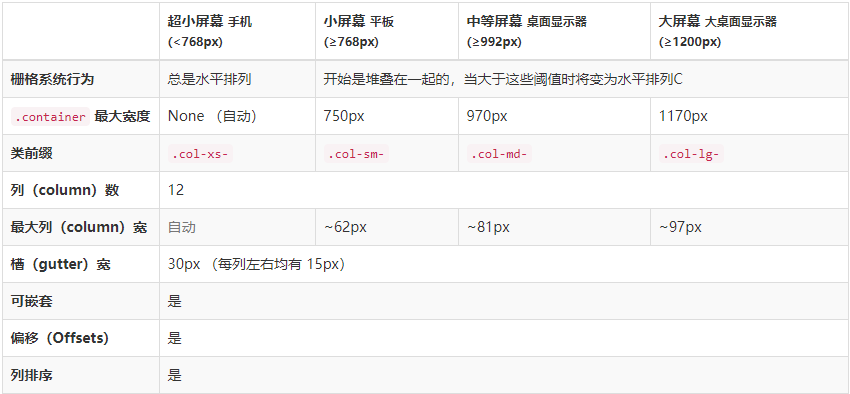
超小屏幕(<768px):手机,col-xs
小屏幕(>=768px):平板,col-sm
中等屏幕(>=992px):桌面,col-md
大屏幕(>=1200px):大桌面,col-lg
- 可用的显示隐藏
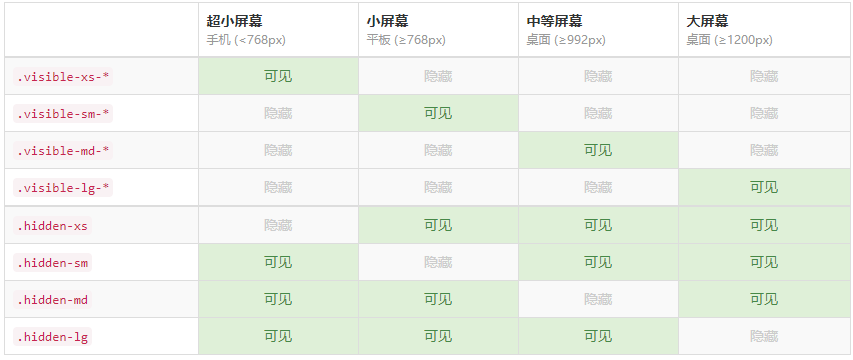
可用的属性:block,inline,inline-block;
打印机可用的:
visible-print-* 浏览器隐藏,打印机可见;
hidden-print 浏览器可见,打印机隐藏;
- 列偏移
col-*-offset-*,向右侧偏移,可以实现居中;
实例:col-xs-offset-3 col-sm-offset-0;
因为在 xs 屏幕以上都是向右偏移了 3 格,所以需要设置 sm 向右偏移 0;
- 列嵌套 在 col 里面添加 row,则里面的 row 的 12 比较最大宽度也是该 col 的宽;
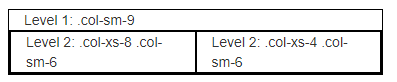
- 列排序 col-*-push-*:向右去多个列;
col-*-pull-*:向左去多个列;
四、排版
- 页面主体
全局 font-size 为 14px,line-height 为 1.428;所有段落元素;
p、li 标签(段落):设置了 10px 的底部 margin;
- 标题:
(1)可以使用.h1-h6 的类,等同于 h1-h6;
(2)<small>标签被 h 标签包裹,作为 h 标签的副标题;

- 中心内容
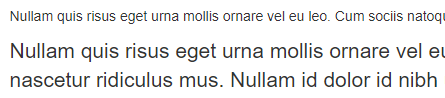
p 标签可以添加一个.lead,突出文本显示,普通的 p 标签和带 lead 的标签:
- 可以使用的标签
del、s、ins、u、small,在 bootstrap 可以放心使用 b、i 标签;
- 文本对齐
左对齐:.text-left
居中对齐:.text-center
右对齐:.text-right
- 改变大小写
小写:.text-lowercase
大写:.text-uppercase
首字母大写:.text-capitalize
- 缩略语
使用 abbr 标签,需要写 title 属性;地址可以使用 address 标签

- 引用样式
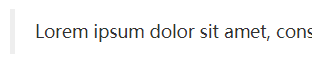
(1)使用<blockquote>标签,会多一个竖线;
(2)引用来源,在 blockquote 标签内,添加 footer 标明引用来源,来源名包进 cite 标签;
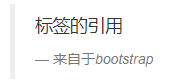
<blockquote>
  <p>标签的引用</p>
  <footer>
    来自于
    <cite>bootstrap</cite>
  </footer>
</blockquote><blockquote>
<p>标签的引用</p>
<footer>
来自于
<cite>bootstrap</cite>
</footer>
</blockquote>(3)给 blockquote 标签添加.blockquote-reverse 类,可以右对齐;
- 列表
(1)去掉样式:.list-unstyled;添加到 ul;
(2)在一行显示:.list-inline;添加到 ul,默认有左右 marign:5px;
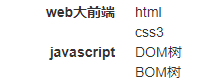
(3)给 dl 添加.dl-horizontal 类,可以将其描述排在一行;
- 内联代码
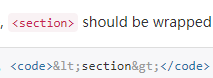
(1)使用<code>标签包裹代码片段,自带样式,
(2)用户输入,使用<kbd>标签
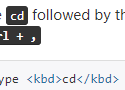
(3)代码块:<pre>标签;

(4)程序输出
使用 samp 标签,和普通 p 标签的对比:

五、表格
- 给表格添加类:.table;基本样式:
 2. 条纹状表格:.table-striped 类;会给 tbody 添加条纹;
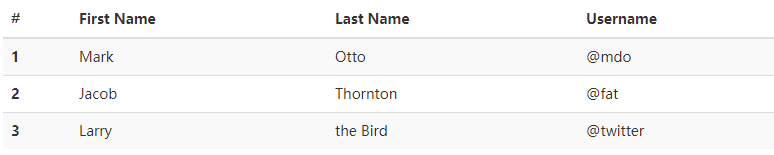 3. 带边框的表格:.table-bordered;每个单元格都增加边框;
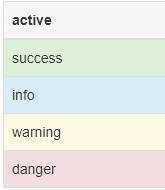
 4. 鼠标移动到行悬停:.table-hover;滑过每一行都会变色,不建议搭配条纹使用; 5. 紧缩表格:.table-condensed;可以更紧凑,padding 会减半; 6. 状态类的行:给 tr 添加类名.active、.success、.info、.warning、.danger 7. 响应式表格:.table-responsive div 标签命名,当在 xs 屏幕下,水平滚动条将在内部 8. 表格垂直居中: 水平居中可以为 td、th 设置 text-align:center;
.table tbody tr td {
  vertical-align: middle;
}
.table tbody tr td {
vertical-align: middle;
} 总结:
总结:
- .table 加上边框
- .table-striped 加条纹
- .table-bordered 增加边框
- .table-hover 滑过变色
- .table-condensed padding 减半
- .active、.success、.info、.warning、.danger 给 tr 添加类名,整行变色;
- .table-responsive 响应式表格;
六、表单
内联表单:form-inline,水平表单:form-horizontal(需要栅格布局)
表单组:
<div class='form-group'>表单需要给 input 添加类名:.form-control;设置了这个类名,宽度就是 100%;
表单布局:将表单组放在 form 里,表单组第一个子元素是 label 标签,需要和 input 的 id 绑定;
<form>
  <div class="form-group">
    <label for="users">Username</label>
    <input type="text" name="" id="users" class="form-control" />
  </div>
</form><form>
<div class="form-group">
<label for="users">Username</label>
<input type="text" name="" id="users" class="form-control" />
</div>
</form>- 内联表单
(1)将表单在一行显示,需要给 form 标签添加.form-inline 类;如果是屏幕小于 xs,会自动变为一行;
(2)内联表单的宽度是 auto;内联表单必须添加 label 标签;如果不设置,屏幕阅读器无法识别;
<div class="form-inline">
  <label>
    Id:
    <input type="text" class="form-control" />
  </label>
  <label>
    姓名:
    <input type="text" class="form-control" />
  </label>
</div><div class="form-inline">
<label>
Id:
<input type="text" class="form-control" />
</label>
<label>
姓名:
<input type="text" class="form-control" />
</label>
</div>
(3)水平排列表单:
给form添加.form-horizontal类,并联合使用栅格布局,label标签设置col-sm-2类,需要再添加control-label类,可以省略row,input需要再来一个div包裹,添加col-sm-10;
checked 添加了列偏移;checked 需要包裹一个 div 类名为 checked 的标签;
<form action="" class="form-horizontal">
  <div class="form-group">
    //普通文本框
    <label for="textIn" class="col-xs-2 control-label">姓名:</label>
    <div class="col-xs-10">
      <input type="text" id="textIn" class="form-control" />
    </div>
  </div>
  <div class="form-group">
    //复选框需要偏移;
    <div class="col-xs-offset-2 col-xs-10">
      <div class="checkbox">
        <label>
          <input type="checkbox" />
          Remember me
        </label>
      </div>
    </div>
  </div>
</form><form action="" class="form-horizontal">
<div class="form-group">
//普通文本框
<label for="textIn" class="col-xs-2 control-label">姓名:</label>
<div class="col-xs-10">
<input type="text" id="textIn" class="form-control" />
</div>
</div>
<div class="form-group">
//复选框需要偏移;
<div class="col-xs-offset-2 col-xs-10">
<div class="checkbox">
<label>
<input type="checkbox" />
Remember me
</label>
</div>
</div>
</div>
</form>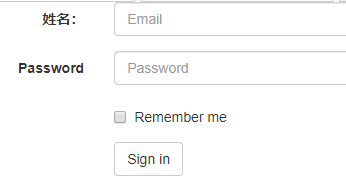
(4)button 添加类 btn 和样式,添加 type='submit',需要对齐就得被 form-group 组包裹;
<button type="submit" class="btn btn-default">
  <textarea class="form-control" rows="3"></textarea>
</button><button type="submit" class="btn btn-default">
<textarea class="form-control" rows="3"></textarea>
</button>- 输入框组控件
(1)为.input-group 赋予.input-group-addon 或.input-group-btn 类,可以给.form-control 的前面或后面添加额外的元素;
注:仅支持 input,不支持 select 和 textarea;
<div class="form-group">
  <div class="input-group">
    <label for="cash" class="sr-only"></label>
    <span class="input-group-addon">$</span>
    <input type="text" name="" id="cash" class="form-control" placeholder="money" />
    <span class="input-group-addon">.00</span>
  </div>
</div><div class="form-group">
<div class="input-group">
<label for="cash" class="sr-only"></label>
<span class="input-group-addon">$</span>
<input type="text" name="" id="cash" class="form-control" placeholder="money" />
<span class="input-group-addon">.00</span>
</div>
</div>
(2)控制大小,给 input-group 再添加相应的类名,input-group-lg/sm;输入框会自动变大;
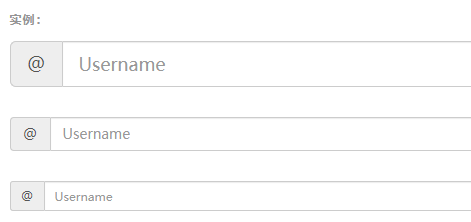
(3)添加额外元素多选和单选
将多选单选输入框添加到 input-group-addon 类名标签里,给多选和文本框同时添加 aria-label='...',多选单选不需要添加 form-control 类;
<div class="input-group">
  <span class="input-group-addon">
    <input type="checkbox" aria-label="..." />
  </span>
  <input type="text" aria-label="..." class="form-control" />
</div><div class="input-group">
<span class="input-group-addon">
<input type="checkbox" aria-label="..." />
</span>
<input type="text" aria-label="..." class="form-control" />
</div>
(4)作为额外元素的按钮
<div class="input-group">
  <input type="text" class="form-control" />
  <span class="input-group-btn">
    <button class="btn btn-default" type="button">GO!</button>
  </span>
</div><div class="input-group">
<input type="text" class="form-control" />
<span class="input-group-btn">
<button class="btn btn-default" type="button">GO!</button>
</span>
</div>
(5)作为额外元素的按钮式下拉菜单
<div class="input-group">
  <div class="input-group-btn">
    <button
      type="button"
      class="btn btn-default dropdown-toggle"
      data-toggle="dropdown"
      aria-haspopup="true"
      aria-expanded="false"
    >
      Action
      <span class="caret"></span>
    </button>
    <ul class="dropdown-menu">
      <li><a href="#">Action</a></li>
      <li><a href="#">Another action</a></li>
      <li><a href="#">Something else here</a></li>
      <li role="separator" class="divider"></li>
      <li><a href="#">Separated link</a></li>
    </ul>
  </div>
  <!-- /btn-group -->
  <input type="text" class="form-control" aria-label="..." />
</div>
<!-- /input-group --><div class="input-group">
<div class="input-group-btn">
<button
type="button"
class="btn btn-default dropdown-toggle"
data-toggle="dropdown"
aria-haspopup="true"
aria-expanded="false"
>
Action
<span class="caret"></span>
</button>
<ul class="dropdown-menu">
<li><a href="#">Action</a></li>
<li><a href="#">Another action</a></li>
<li><a href="#">Something else here</a></li>
<li role="separator" class="divider"></li>
<li><a href="#">Separated link</a></li>
</ul>
</div>
<!-- /btn-group -->
<input type="text" class="form-control" aria-label="..." />
</div>
<!-- /input-group -->
(6)分裂式的按钮
<div class="input-group">
  <div class="input-group-btn">
    <button type="button" class="btn btn-default">Action</button>
    <button
      type="button"
      class="btn btn-default dropdown-toggle"
      data-toggle="dropdown"
      aria-haspopup="true"
      aria-expanded="false"
    >
      <span class="caret"></span>
      <span class="sr-only">Toggle Dropdown</span>
    </button>
    <ul class="dropdown-menu">
      <li><a href="#">Action</a></li>
      <li><a href="#">Another action</a></li>
      <li><a href="#">Something else here</a></li>
      <li role="separator" class="divider"></li>
      <li><a href="#">Separated link</a></li>
    </ul>
  </div>
  <input type="text" class="form-control" aria-label="Text input with segmented button dropdown" />
</div><div class="input-group">
<div class="input-group-btn">
<button type="button" class="btn btn-default">Action</button>
<button
type="button"
class="btn btn-default dropdown-toggle"
data-toggle="dropdown"
aria-haspopup="true"
aria-expanded="false"
>
<span class="caret"></span>
<span class="sr-only">Toggle Dropdown</span>
</button>
<ul class="dropdown-menu">
<li><a href="#">Action</a></li>
<li><a href="#">Another action</a></li>
<li><a href="#">Something else here</a></li>
<li role="separator" class="divider"></li>
<li><a href="#">Separated link</a></li>
</ul>
</div>
<input type="text" class="form-control" aria-label="Text input with segmented button dropdown" />
</div>
- 选择框
(1)多选和单选,需要给父元素的 div 标签添加 checkbox、radio;如果是禁用的,也需要给父元素添加 disabled;如果没有 div 父级元素,会导致布局出错;
<div class="checkbox disabled">
  <label for="">
    <input type="checkbox" name="" id="" disabled />
  </label>
</div><div class="checkbox disabled">
<label for="">
<input type="checkbox" name="" id="" disabled />
</label>
</div>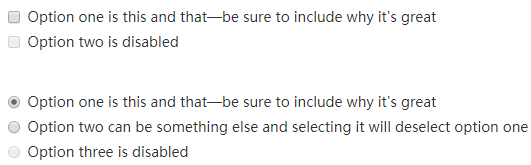
(2)内联单选和多选框;
给 label 标签添加类,.checkbox-inline 或.radio-inline;可以在一行显示;
<label class="checkbox-inline">
  <input type="checkbox" id="inlineCheckbox1" value="option1" />
  1
</label>
<label class="checkbox-inline">
  <input type="checkbox" id="inlineCheckbox2" value="option2" />
  2
</label>
<label class="checkbox-inline">
  <input type="checkbox" id="inlineCheckbox3" value="option3" />
  3
</label><label class="checkbox-inline">
<input type="checkbox" id="inlineCheckbox1" value="option1" />
1
</label>
<label class="checkbox-inline">
<input type="checkbox" id="inlineCheckbox2" value="option2" />
2
</label>
<label class="checkbox-inline">
<input type="checkbox" id="inlineCheckbox3" value="option3" />
3
</label>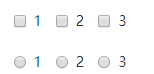
- 下拉列表:给 select 添加.form-control;
<select class="form-control">
  <option>1</option>
  <option>2</option>
</select><select class="form-control">
<option>1</option>
<option>2</option>
</select>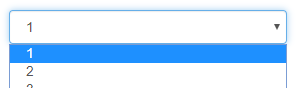
- 静态控件:将 input 标签替换 p 标签,添加.form-control-static 类
<div class="form-group">
  <label class="col-sm-2 control-label">Email</label>
  <div class="col-sm-10">
    <p class="form-control-static">email@example.com</p>
  </div>
</div><div class="form-group">
<label class="col-sm-2 control-label">Email</label>
<div class="col-sm-10">
<p class="form-control-static">email@example.com</p>
</div>
</div>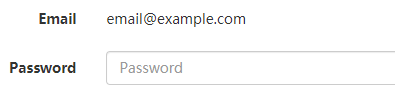
- 帮助文本,可以对照帮助文本输入内容;
给 input 标签添加属性 aria-describedby='helpBlock',这个 helpBlock 任意取名,在提示文本标签添加 id 名=这个属性,并添加类名 help-block;
<label for="inputHelpBlock">Input with help text</label>
<input type="text" id="inputHelpBlock" class="form-control" aria-describedby="helpBlock" />
<span id="helpBlock" class="help-block">
  A block of help text that breaks onto a new line and may extend beyond one line.
</span><label for="inputHelpBlock">Input with help text</label>
<input type="text" id="inputHelpBlock" class="form-control" aria-describedby="helpBlock" />
<span id="helpBlock" class="help-block">
A block of help text that breaks onto a new line and may extend beyond one line.
</span>
- 校验状态
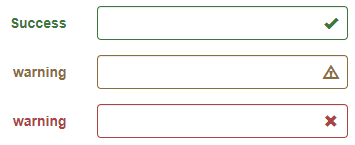
(1).has-warning、.has-error、.has-success 类添加到父元素,任何包含在此元素之内的.control-label、.form-control、.help-block 元素都会变色;
(2)添加校验的图标;图标只能添加到 input 上;
添加.has-feedback 到父元素,给 input 同级元素的 span 添加类:glyphicon glyphicon-ok form-control-feedback;
成功:ok;
警告:warning-sign
清除:remove;
<div class="form-group has-warning has-feedback">
  <label class="control-label" for="inputWarning2">Input with warning</label>
  <input type="text" class="form-control" id="inputWarning2" />
  <span class="glyphicon glyphicon-warning-sign form-control-feedback"></span>
</div><div class="form-group has-warning has-feedback">
<label class="control-label" for="inputWarning2">Input with warning</label>
<input type="text" class="form-control" id="inputWarning2" />
<span class="glyphicon glyphicon-warning-sign form-control-feedback"></span>
</div>label 标签的类:如果不填写会没有文字颜色,如果没有 label 标签,布局不完美;
input 标签:aria-describedby 是为了屏幕阅读器绑定提示;和最后面的 span 标签是一对的;
span 标签:glyphicon(字体文件) glyphicon-warning-sign 警告图标 form-control-feedback 排版 如不填写,会掉下来;
建议:强烈建议使用 input 需要添加 label 标签,如果不想 label 标签显示,可以添加 sr-only 类,不添加 label 标签需要额外调整图标的位置;
- 输入框尺寸
给 input 框添加类:input-lg、input-sm;
给水平排列的表单组:添加 form-group-lg 或 sm 类,给表单组添加;
设置宽度可以包裹一个父元素;
七、按钮
- 可使用的标签:a、button、submit;
注意:
(1)导航和导航条只支持 button;
(2)a 标签被作为按钮使用:如果不是跳转网页,而是触发功能,需要设置 role='button';
(3)如果是屏幕阅读器的用户来说需要使用 sr-only 类隐藏的额外文本来表达;
- 带有预定义样式的类:
使用按钮必须有 btn 类,另外一个是图标类:btn-default;btn-info

- 尺寸
可用的类:.btn-lg、.btn-sm、.btn-xs 可以获得不同的尺寸;
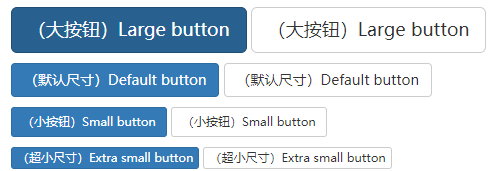
.btn-block 可以拉伸父元素的 100%宽度;
- 激活状态
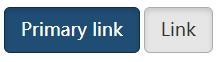
button 是用:active 实现的,a 标签是用.active 实现的;也可以给 button 加类;
- 禁用状态
button 按钮直接设置 disabled='disabled',
a 标签添加 disabled 类;
八、图片
- 响应式图片
给图片添加类:.img-responsive,
图片水平居中:.center-block;
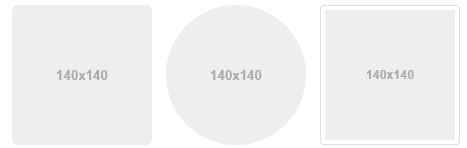
- 图片形状:也可以直接给 a 标签添加类,在 a 标签添加 img,会增加一个带链接的图片;
.img-rounded、.img-circle、.img-thumbnail
九、辅助类
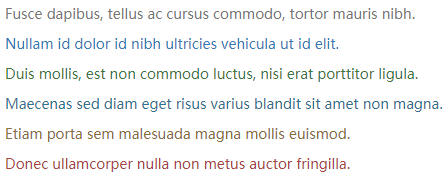
- 文本颜色
.text-muted、.text-primary、.text-success、.text-info、.text-warning、.text-danger;
- 情景背景
和文本颜色类一样,将 text 改为 bg:bg-success;
- 关闭按钮
<button type="button" class="close" aria-label="Close">
<span aria-hidden="true">×</span>
</button><button type="button" class="close" aria-label="Close">
<span aria-hidden="true">×</span>
</button>- 三角符号:添加类.caret;
- 快速浮动
左浮动:pull-left;
右浮动:pull-right;
注:不能用于导航条,导航条使用.navbar-left 或.navbar-right
内容块居中:.center-block;
清除浮动:.clearfix;
显示或隐藏内容:.show、.hidden;隐藏还占位:.invisible;
屏幕阅读器和键盘导航
(1).sr-only 可以对屏幕阅读器以外的设备隐藏内容,
(2).sr-only 和.sr-only-focusable 联合使用的话可以在元素有焦点时显示出来;
十、使用插件
- vscode 下载插件:bootstrap 3 snippets
- 使用插件中所有代码补齐 s 都带前缀 bs3,可以输入 bs3 查看所有可用的快捷方式;
- bs3-template:自动引入 bootstrap 和 js 文件;
附:Bootstrap 5 快速参考
以上内容均为 Bootstrap 3(v3.3.7)。Bootstrap 5(当前稳定版 5.3.x)发生了较大变化,以下为关键差异:
主要变化
| 变化 | Bootstrap 3 | Bootstrap 5 |
|---|---|---|
| jQuery 依赖 | 必须引入 jQuery | 完全移除,纯原生 JS |
| CSS 变量 | 无 | 支持 CSS 自定义属性 --bs-* |
| 栅格 | 4 级(xs/sm/md/lg),float 布局 | 6 级(新增 xl/xxl),flexbox 布局,支持 CSS Grid |
| IE 支持 | 兼容 IE8+ | 不再支持 IE |
| 排版 | 使用面板、well、缩略图 | 统一使用 Card 组件替代 |
| 工具类 | 较少 | 大量工具类(间距、弹性盒、阴影、透明度等) |
Bootstrap 5 CDN(无 jQuery)
<link href="https://cdn.jsdelivr.net/npm/bootstrap@5.3.3/dist/css/bootstrap.min.css" rel="stylesheet" />
<script src="https://cdn.jsdelivr.net/npm/bootstrap@5.3.3/dist/js/bootstrap.bundle.min.js"></script><link href="https://cdn.jsdelivr.net/npm/bootstrap@5.3.3/dist/css/bootstrap.min.css" rel="stylesheet" />
<script src="https://cdn.jsdelivr.net/npm/bootstrap@5.3.3/dist/js/bootstrap.bundle.min.js"></script>从 v3 到 v5 的迁移要点
| Bootstrap 3 | Bootstrap 5 |
|---|---|
col-xs-* | col-* |
col-sm/md/lg-* | 不变(新增 col-xl-*、col-xxl-*) |
form-control | 不变,但表单验证使用 CSS :valid/:invalid |
btn btn-default | btn btn-secondary(default 已移除) |
panel / well / thumbnail | 统一使用 card |
table-condensed | table-sm |
hidden-xs | d-none d-md-block |
pull-left / pull-right | float-start / float-end |
.hidden / .show | .d-none / .d-block |
新增关键组件
- Offcanvas — 侧边滑出面板
- Accordion — 手风琴折叠
- Floating labels — 浮动标签输入框
- Toast — 消息提示
- Placeholder — 加载占位符
- Dark mode —
data-bs-theme="dark"