 Cao Note
Mac 使用技巧
⚠️ 注意:以下部分软件推荐和安装链接可能已过时。macwk.com 已关闭。当前推荐软件可在 awesome-mac 或 xclient.info 查找。
Mac 常用设置
三指拖动
甩开鼠标的必需设置,复制、拖动窗口直接使用三指即可
设置 -> 辅助功能 -> 鼠标与触控版 -> 触控版选项 -> 三指拖动
开发环境配置
安装 brew
使用国内的 cdn 地址安装
/bin/zsh -c "$(curl -fsSL https://gitee.com/cunkai/HomebrewCN/raw/master/Homebrew.sh)"/bin/zsh -c "$(curl -fsSL https://gitee.com/cunkai/HomebrewCN/raw/master/Homebrew.sh)"后续出现的内容输入 1 和 y 即可;
具体参考文章:HomebrewCN 安装,国内镜像,快得一匹
安装 git
brew install gitbrew install git官方网站:https://git-scm.com/download/mac
安装 items2
官网直接下载:https://iterm2.com/downloads.html
配置 items2
安装 oh my zsh(国内 gitee)
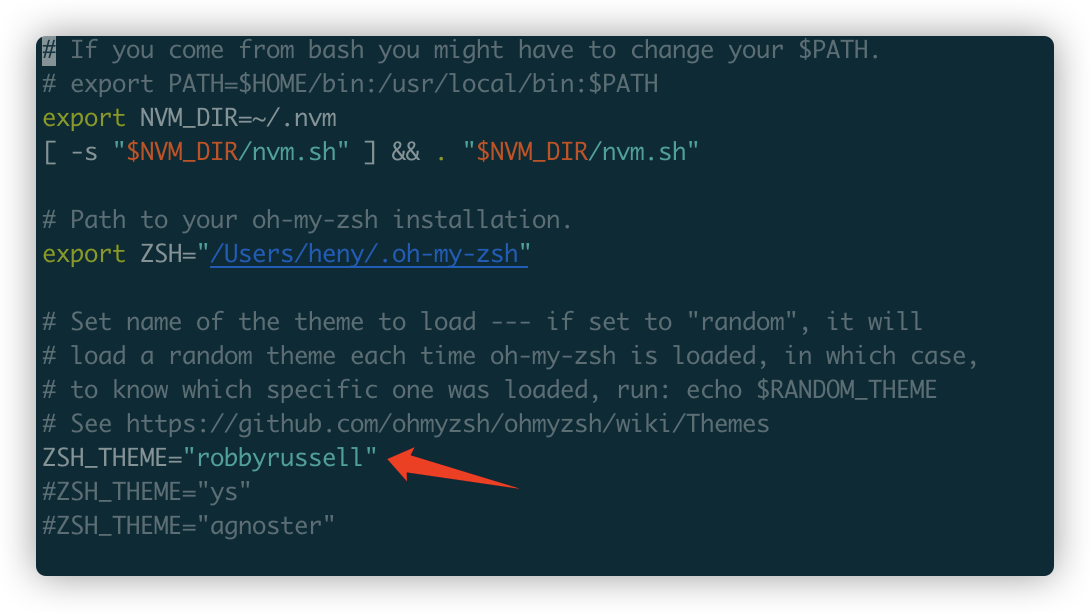
使用 ohmyzsh 之后,可以配置喜欢的主题,默认的终端在 git 项目文件夹是不会显示当前分支的,配置之后可以显示分支
sh -c "$(curl -fsSL https://gitee.com/pocmon/ohmyzsh/raw/master/tools/install.sh)"sh -c "$(curl -fsSL https://gitee.com/pocmon/ohmyzsh/raw/master/tools/install.sh)"安装完成后,默认 Shell 的~/.bash_profile 文件默认不再加载,替代的是~/.zshrc。如果在~/.bash_profile 里配置了某些设置,需要复制到~/.zshrc 中
终端输入:vim ~/.zshrc, 这里可以配置主题,可以去 github 找自己喜欢的主题,主题集地址:https://github.com/ohmyzsh/ohmyzsh/wiki/themes
配置代码高亮和代码补齐
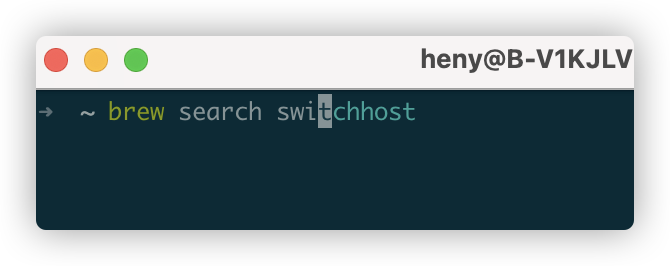
下面的 brew 为代码高亮,代码没有输出完,显示的 switchhost 为代码补齐,只有输过的内容才会补齐
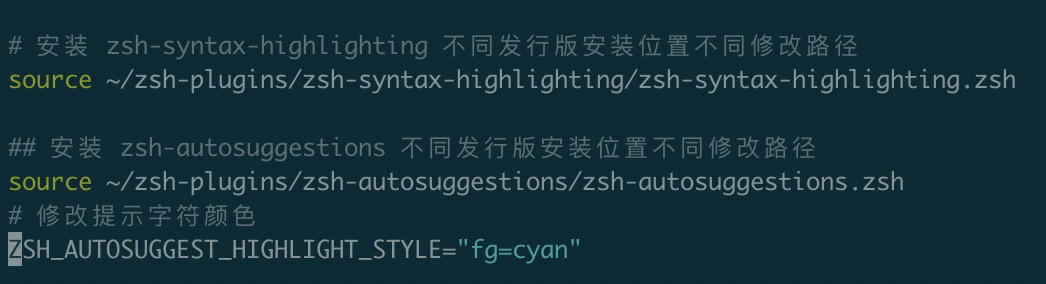
- 打开 vim ~/.zshrc,编辑最后两行,将高亮跟补齐开起来,并修改 source 的文件夹为~/zsh-plugins,配置补齐之后可能不会显示出来,下面的可以将修改提示字符颜色打开
- 到~/zsh-plugins 克隆下面的内容
git clone https://github.com/zsh-users/zsh-syntax-highlighting.git
git clone https://github.com/zsh-users/zsh-autosuggestions.git
git clone https://github.com/zsh-users/zsh-syntax-highlighting.git
git clone https://github.com/zsh-users/zsh-autosuggestions.git配置 solarized 主题
- 克隆主题
git clone git://github.com/altercation/solarized.gitgit clone git://github.com/altercation/solarized.git进入克隆的主题文件夹,打开 iterm2-colors-solarized,之后随意单击一个主题即可
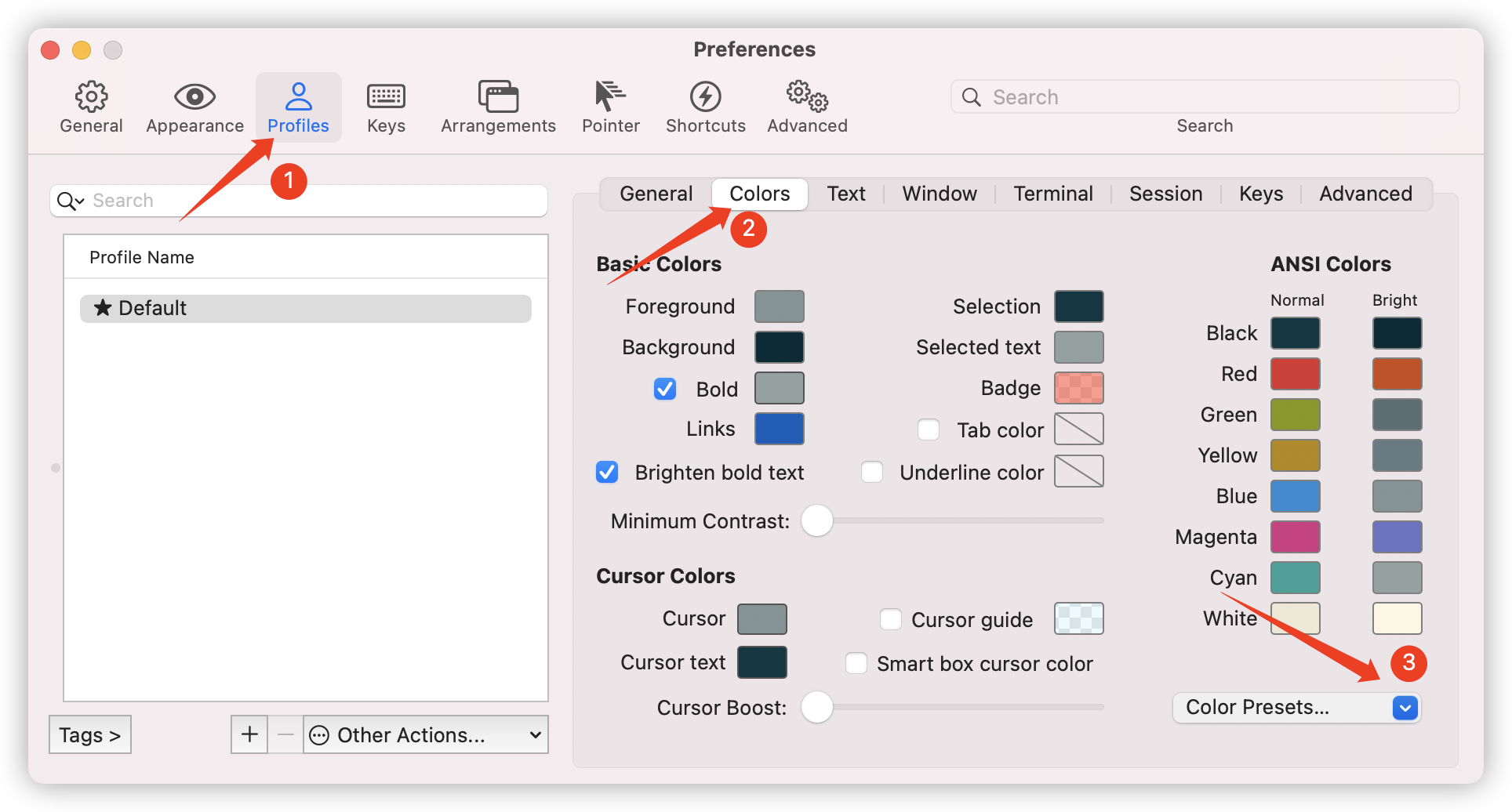
进入 itemrs2,按 commond + , 打开设置
依次进入:Profiles - colors - color presets ,选择 solarized 主题即可
配置 vim solarized 主题
vim 默认没有主题,任何语言输入没有颜色,配置之后就会有颜色了
- 打开终端,进入 solarized 目录
- 创建文件夹以及复制
mkdir -p ~/.vim/colors  # 递归创建vim/colors文件夹
cd solarized    # 进入solarized目录
cp vim-colors-solarized/colors/solarized.vim ~/.vim/colors   #复制到该目录
mkdir -p ~/.vim/colors # 递归创建vim/colors文件夹
cd solarized # 进入solarized目录
cp vim-colors-solarized/colors/solarized.vim ~/.vim/colors #复制到该目录- 写入主题 vim ~/.vimrc
syntax enable
# set background=light
set background=dark
colorscheme solarized
syntax enable
# set background=light
set background=dark
colorscheme solarized配置 nvm
nvm 用来管理 node 版本
安装 nvm
export NVM_DIR="$HOME/.nvm" && (
  git clone https://github.com/nvm-sh/nvm.git "$NVM_DIR"
  cd "$NVM_DIR"
  git checkout `git describe --abbrev=0 --tags --match "v[0-9]*" $(git rev-list --tags --max-count=1)`
) && \. "$NVM_DIR/nvm.sh"
export NVM_DIR="$HOME/.nvm" && ( git clone https://github.com/nvm-sh/nvm.git "$NVM_DIR" cd "$NVM_DIR" git checkout `git describe --abbrev=0 --tags --match "v[0-9]*" $(git rev-list --tags --max-count=1)` ) && \. "$NVM_DIR/nvm.sh"配置 vim ~/.zshrc,将下面内容添加进去即可
export NVM_DIR="$HOME/.nvm"
[ -s "$NVM_DIR/nvm.sh" ] && \. "$NVM_DIR/nvm.sh"  # This loads nvm
[ -s "$NVM_DIR/bash_completion" ] && \. "$NVM_DIR/bash_completion"  # This loads nvm bash_completion
export NVM_DIR="$HOME/.nvm" [ -s "$NVM_DIR/nvm.sh" ] && \. "$NVM_DIR/nvm.sh" # This loads nvm [ -s "$NVM_DIR/bash_completion" ] && \. "$NVM_DIR/bash_completion" # This loads nvm bash_completion切换源
export NVM_NODEJS_ORG_MIRROR=http://npm.taobao.org/mirrors/node
export NVM_IOJS_ORG_MIRROR=http://npm.taobao.org/mirrors/iojs
export NVM_NODEJS_ORG_MIRROR=http://npm.taobao.org/mirrors/node export NVM_IOJS_ORG_MIRROR=http://npm.taobao.org/mirrors/iojs更新配置文件或者重启终端都可以生效
# 更新配置文件
source ~/.zshrc
# 更新配置文件 source ~/.zshrc配置文件根据终端不同使用的文件也不同
bash:
source ~/.bashrczsh:
source ~/.zshrcksh:
. ~/.profile
常用快捷键
command + ,打开软件偏好设置,所有的软件都可以用command + q退出软件control + command + q锁定屏幕command + option + esc打开强制退出窗口control + command + d选中单词使用该快捷键可以唤醒默认翻译command + c复制command + v粘贴command + options + v将复制的文件直接剪切command + m最小化当前窗口command + option + d隐藏扩展坞command + shift + 5使用自带的截屏或录屏command + shift + 4选择区域屏幕截图command + shift + 3截取全屏command + space打开搜索command + shift + g在坊达窗口输入,可以跳转输入路径
软件推荐
Rectangle桌面吸附软件,brew 安装bob翻译软件,可以截图翻译,支持配置多种翻译源超级右键可以右键直接创建,在 appstore 下载go2shell访达添加终端表情,使用 brew 安装copyless复制插件 appStore 下载ishot长截图软件 appStore 下载movist最好的视频播放软件permute格式转换downie视频下载哈利路亚输入法英文单词带提示输入法Snipaste最强截图软件istat menus监控数据神器appCleaner软件彻底卸载handshaker手机与 mac 连接神器ezip压缩软件keka压缩软件QSpace访达替代品,支持多窗口gif berwerygif 录制工具Synergywin 本和 mac 放一起时,使用一套键鼠操作keycastr实时显示按键switchhosts切换 host 软件,brew 安装,下载比较慢
更全的 mac 推荐软件:https://github.com/jaywcjlove/awesome-mac/blob/master/README-zh.md