 Cao Note
Visual Studio Code 配置
扩展插件推荐
浏览器打开:view in browser
打开浏览器:open in browser
修改前缀自动补齐:auto rename tag
更明显的颜色对齐:bracket rair colorizer
简体中文:chinese(Simplified)
所见即所得:live html previewer
创建 svg 画布:SVG
浏览画布:Svg Preview
输入#选颜色:vs color picker
跳转到 css 类名样式:css peek
模拟服务器:Live Server
vue 文件自动补齐:vetur
bootstrap 自动完成类名:bootstrap 3 Snippets
vue 自动完成:vue 2 snippets
javascript 自动完成:Atom javascript snippet
第三方 cdn:cdnjs
cdn 自动完成:cdnSnippets
es6 自动完成:javascript(es6) code snippets
路径自动完成:path intellisense
图标美化:material icon theme
快捷 console:javascript console utils
autoprefixer: 在使用 css 文件编写样式时,按 shift+ctrl+p,找到 autoprefixer 回车自动加兼容 ie 前缀;
自动完成:aiXcoder.com 会自动提示补全功能(带星),需要在官网下载
TabNine: 代码自动补全,
gitlens:管理 git 插件,可以随时查看到 git 版本修改信息(超好用)
选中函数添加注释:Add jsdoc comments
正则预览插件(写正则很方便): Regex Previewer
注释醒目插件(多种注释带颜色,区分不同程度注释):Better Comments
自动引入 import:npm Intellisense
sass 转换:live sass compiler(需要使用 shift+ctrl+p 打开搜索 sass 找到编译)
less 转换:easy less (保存自动编译)
图标主题:atom one dark theme(atom 系列的都好看)
同步 vscode 配置:settings sync(出问题就重置一下设置,重新登录授权就可以了)
REST Client:请求接口常用
创建 test.http
js@host = https://example.com GET {{host}}/banner HTTP/1.1 content-type: application/json { "name": "sample" }@host = https://example.com GET {{host}}/banner HTTP/1.1 content-type: application/json { "name": "sample" }Browser Preview:vscode 嵌套浏览器,方便 debugger 使用
polacode-2022 生成漂亮的截图软件
主题相关
One Dark Pro- 黑色主题
- 插件地址
Shades of Purple- 紫色主题(来自彤姐的推荐:没有什么比骚更重要)
- 插件地址
Dracula Official- 黑色主题
- 插件地址
Bluloco Dark- 黑色主题
- 插件地址
Material Icon Theme- 文件图标美化
- 插件地址
background- 自定义背景
- 插件地址
HTML 相关
Auto Close Tag- 自动添加 HTML / XML 关闭标签
- 插件地址
Auto Rename Tag- 自动重命名配对的 HTML / XML 标签
- 插件地址
Highlight Matching Tag- Tag 高亮匹配标记
- 插件地址
React 相关
ES7 React/Redux/GraphQL/React-Native snippets- 提供 ES7 中的 JavaScript 和 React / Redux 片段,以及针对 VS Code 的 Babel 插件功能
- 插件地址
Vue 相关
CSS 相关
AI 代码提示和生成
Markdown 相关
markdownlint- Markdown / CommonMark 标记和样式检查
- 插件地址
Markdown Preview Enhanced
Git 相关
GitLens — Git supercharged- 增强构建在 VS Code 中的
Git功能 - 插件地址
- 增强构建在 VS Code 中的
格式和代码检查相关
ESLint- 将 ESLint JavaScript 集成到 VS Code 中
- 插件地址
Prettier - Code formatter- 代码格式化
- 插件地址
Code Spell Checker- 代码拼写检查
- 插件地址
Error Lens- 突出显示代码错误和警告
- 插件地址
Sort package.json- 对
package.json文件进行排序 - 插件地址
- 对
调试相关
Live Server- 启动具有实时重新加载功能的本地开发服务,以处理静态和动态页面
- 插件地址
语法支持
开发体验提升
Auto Import- 自动查找,解析并提供所有可用导入的代码操作和代码完成。 与
Typescript和TSX一起使用 - 插件地址
- 自动查找,解析并提供所有可用导入的代码操作和代码完成。 与
Import Cost- 在编辑器中显示导入/需要包的大小(PS:小内存用户不建议使用,说的就是你这个用 8G 的)
- 插件地址
Image preview- 在行号边上、悬停时显示图像预览
- 插件地址
Path Intellisense- 自动补全文件名
- 插件地址
npm Intellisense- 可自动完成导入语句中的 npm 模块
- 插件地址
Chinese (Simplified) Language Pack for Visual Studio Code- 适用于 VS Code 的中文(简体)语言包
- 插件地址
es6-string-html- ES6 模板字符串高亮
- 插件地址
Todo Tree- 在树视图中显示 TODO FIXME 等注释标记
- 插件地址
微信小程序相关
WXML - Language Service- 微信小程序标签、属性的智能补全(同时支持原生小程序、
mpvue和wepy框架,并提供 snippets) - 插件地址
- 微信小程序标签、属性的智能补全(同时支持原生小程序、
其他
韭菜盒子- 看股票、基金实时数据
- 插件地址
使用小技巧
删除空行
- 打开替换
Alt + ⌘ + F - 输入
^\s*(?=\r?$)\n - 勾选使用正则表达式
Alt + ⌘ + R - 全部替换
⌘ + Enter
vscode 快捷键
- alt+shift+↓/↑ 快速向下/向上复制一行。
- alt+鼠标左键 点击需要修改的地方,可以同时修改
- ctrl+shift+L 选中所有被搜索的内容。
- ctrl+shift+K 删除当前行。
- ctrl+[ / ] 缩进/增进。
- ctrl+enter 快速下一行
- ctrl+shift+enter 快速上一行
- shift+alt+a 多行注释
- ctrl+d 快速选中下一个
- alt+shift+f 快速格式化上下文
- alt+z 格式化文字
- 按住鼠标滚轮可以选中
- ctrl+k+0 快速折叠
- ctrl+k+j 全部展开
- ctrl+shift+{/} 当前折叠/展开
- ctrl+, 打开 setting
- ctrl+j 打开控制台
- ctrl+p 搜索文件
- ctrl+shift+p 使用功能
- tr*5>td*3 出来五个 tr,每个 tr 里面包含 3 个 td
- .box 直接 class 名 box。
- #box 直接 id 名 box。
- div*9{$} 出来 9 个 div 包含数字 1-9;
网页截图:ctrl+shift+p capture full size screenshot
切换屏幕:alt+ctrl+方向键
安装 code 命令
code 命令可以直接打开一个文件或者文件目录
- 使用
shift + command + p打开命令面板 - 输入
shell command进行搜索 - 点击
Shell 命令:在 PATH 中安装 “code” 命令
# 在 vscode 中编辑当前目录下的文件
code .

# 在 vscode 中编辑该文件(当文件不存在时会先创建该文件)
code [文件名]
# 在 vscode 中编辑当前目录下的文件
code .
# 在 vscode 中编辑该文件(当文件不存在时会先创建该文件)
code [文件名]webpack 项目识别 alias
- 在项目根目录新建
jsconfig.json或tsconfig.json - 添加以下代码,其中
paths字段的值要与你项目配置的alias一致
{
  "compilerOptions": {
    "baseUrl": ".",
    "paths": {
      "@/*": ["src/*"]
    }
  },
  "include": ["src"]
}
{
"compilerOptions": {
"baseUrl": ".",
"paths": {
"@/*": ["src/*"]
}
},
"include": ["src"]
}推荐配置
// 将设置放入此文件中以覆盖默认设置
{
  /** 编辑器相关配置 */
  "editor.fontSize": 13.5,
  "editor.fontFamily": "Input Mono, Fira Code, monospace",
  "editor.fontLigatures": "'ss01', 'ss02', 'ss03', 'ss06', 'zero'",
  "editor.tabSize": 2,
  // 关闭快速预览
  "editor.minimap.enabled": true,
  "editor.wordWrap": "on",
  "editor.lineNumbers": "on",
  "editor.quickSuggestions": {
    "other": true,
    "comments": true,
    "strings": true
  },
  // bug控制缩进不关tabSize修改无用
  "editor.detectIndentation": false,
  "editor.inlineSuggest.enabled": true,
  "editor.cursorSmoothCaretAnimation": true,
  "editor.multiCursorModifier": "ctrlCmd",
  "editor.renderWhitespace": "boundary",
  "editor.glyphMargin": true,
  "editor.accessibilitySupport": "off",
  // 保存格式化
  "editor.formatOnSave": true,
  "editor.codeActionsOnSave": {
    "source.fixAll": true,
    "source.fixAll.eslint": true
    // "source.organizeImports": true,
  },
  "editor.unicodeHighlight.allowedLocales": {
    "zh-hans": true
  },
  /** 工作台配置 */
  "workbench.colorTheme": "Bluloco Dark",
  "workbench.iconTheme": "material-icon-theme",
  // 新开标签页查看文件而不是覆盖当前标签页
  "workbench.editor.enablePreview": false,
  "workbench.editor.closeOnFileDelete": true,
  "workbench.editor.highlightModifiedTabs": true,
  "workbench.tree.indent": 14,
  "workbench.list.smoothScrolling": true,
  "workbench.activityBar.visible": true,
  "workbench.startupEditor": "newUntitledFile",
  "workbench.fontAliasing": "antialiased",
  /** 终端配置 */
  "terminal.integrated.cursorBlinking": true,
  "terminal.integrated.persistentSessionReviveProcess": "never",
  "terminal.integrated.tabs.enabled": true,
  "terminal.integrated.cursorStyle": "line",
  "extensions.autoUpdate": "onlyEnabledExtensions",
  "extensions.ignoreRecommendations": true,
  // 如需要开发微信小程序,需要注释这段代码,不然会和 minapp-vscode 插件冲突
  // "editor.defaultFormatter": "esbenp.prettier-vscode",
  "[javascript]": {
    "editor.defaultFormatter": "esbenp.prettier-vscode"
  },
  "[javascriptreact]": {
    "editor.defaultFormatter": "esbenp.prettier-vscode"
  },
  "[typescript]": {
    "editor.defaultFormatter": "esbenp.prettier-vscode"
  },
  "[typescriptreact]": {
    "editor.defaultFormatter": "esbenp.prettier-vscode"
  },
  "[vue]": {
    "editor.defaultFormatter": "esbenp.prettier-vscode"
  },
  "[html]": {
    "editor.defaultFormatter": "esbenp.prettier-vscode"
  },
  "[css]": {
    "editor.defaultFormatter": "esbenp.prettier-vscode"
  },
  "[less]": {
    "editor.defaultFormatter": "esbenp.prettier-vscode"
  },
  "[scss]": {
    "editor.defaultFormatter": "esbenp.prettier-vscode"
  },
  "[json]": {
    "editor.defaultFormatter": "vscode.json-language-features"
  },
  // 有注释的 json
  "[jsonc]": {
    "editor.defaultFormatter": "vscode.json-language-features"
  },
  "[wxml]": {
    "editor.defaultFormatter": "qiu8310.minapp-vscode"
  },
  // 文件配置
  "files.associations": {
    "*.cjson": "jsonc",
    "*.wxss": "css",
    "*.wxs": "javascript",
    "*.vue": "vue",
    "*.env.*": "env"
  },
  "files.exclude": {
    "**/.idea": true
  },
  "files.insertFinalNewline": true,
  "files.simpleDialog.enable": true,
  /** 文件搜索配置 */
  "search.exclude": {
    // 配置文件
    "**/.vscode": true,
    "**/.git": true,
    "**/.github": true,
    // 依赖文件
    "**/node_modules": true,
    "**/bower_components": true,
    "**/miniprogram_npm": true,
    // lock 文件
    "**/package-lock.json": true,
    "**/yarn.lock": true,
    "**/pnpm-lock.yaml": true,
    // 打包文件
    "**/dist": true,
    "**/.umi": true
  },
  "scm.defaultViewMode": "tree",
  /** git 相关 */
  "git.ignoreMissingGitWarning": true,
  "git.autofetch": true,
  "git.untrackedChanges": "separate",
  /** 资源管理器配置 */
  "explorer.confirmDelete": false,
  "explorer.confirmDragAndDrop": false,
  /*** 第三方扩展配置 ***/
  /** eslint 配置 */
  "eslint.format.enable": true,
  "eslint.options": {
    "extensions": [".js", ".jsx", ".ts", ".tsx", ".vue"]
  },
  "eslint.validate": [
    "javascript",
    "javascriptreact",
    "typescript",
    "typescriptreact",
    "html",
    "vue",
    "markdown",
    "json",
    "jsonc",
    "json5"
  ],
  /** prettier 配置 */
  // 是否每行末尾添加分号
  "prettier.semi": false,
  // 是否使用单引号
  "prettier.singleQuote": true,
  "prettier.printWidth": 100,
  "prettier.trailingComma": "none",
  /** errorLens 配置 */
  "errorLens.enabledDiagnosticLevels": ["warning", "error"],
  "errorLens.excludeBySource": ["cSpell", "Grammarly", "eslint"],
  /** Code Spell Checker 配置 */
  "cSpell.allowCompoundWords": true,
  "cSpell.language": "en,en-US",
  "cSpell.ignoreWords": [
    /** 库相关 */
    "yalc",
    "vetur",
    "vuex",
    "vuepress",
    "vite",
    "antd",
    "ahooks",
    "weui",
    "weapp",
    "craco",
    "execa",
    /** 文件后缀 */
    "wxml",
    "xmind",
    /** 常用简写 */
    "btns"
  ],
  /** emmet 配置 */
  "emmet.showSuggestionsAsSnippets": true,
  "emmet.triggerExpansionOnTab": true,
  "emmet.includeLanguages": {
    "vue-html": "html",
    "javascript": "javascriptreact",
    "wxml": "html"
  },
  /** vetur 配置 */
  "vetur.format.defaultFormatter.html": "prettyhtml",
  "vetur.format.defaultFormatter.js": "prettier-eslint",
  "vetur.format.defaultFormatterOptions": {
    "prettyhtml": {
      "printWidth": 80, // No line exceeds 100 characters
      "singleQuote": false // Prefer double quotes over single quotes
    },
    "prettier": {
      // 是否添加分号
      "semi": false,
      // 是否使用单引号
      "singleQuote": true,
      "eslintIntegration": true,
      "parser": "babylon"
    }
  },
  "gitlens.keymap": "alternate",
  "tabnine.experimentalAutoImports": true,
  // 标签高亮
  "highlight-matching-tag.styles": {
    "opening": {
      "left": {
        "custom": {
          "borderWidth": "0 0 0 4px",
          "borderStyle": "solid",
          "borderColor": "LightSkyBlue",
          "borderRadius": "5px"
        }
      },
      "right": {
        "custom": {
          "borderWidth": "0 4px 0 0",
          "borderStyle": "solid",
          "borderColor": "LightSkyBlue",
          "borderRadius": "5px"
        }
      }
    }
  },
  /** markdown 配置 */
  "[markdown]": {
    "editor.defaultFormatter": "esbenp.prettier-vscode",
    "editor.quickSuggestions": {
      "comments": "on",
      "strings": "on",
      "other": "on"
    }
  },
  "markdown-preview-enhanced.codeBlockTheme": "one-dark.css",
  "markdown-preview-enhanced.previewTheme": "one-dark.css",
  "markdownlint.config": {
    "MD001": false,
    "MD024": false,
    // 内联 HTML
    "MD033": false
  },
  /** 微信小程序配置 */
  "minapp-vscode.disableAutoConfig": true
}
// 将设置放入此文件中以覆盖默认设置
{
/** 编辑器相关配置 */
"editor.fontSize": 13.5,
"editor.fontFamily": "Input Mono, Fira Code, monospace",
"editor.fontLigatures": "'ss01', 'ss02', 'ss03', 'ss06', 'zero'",
"editor.tabSize": 2,
// 关闭快速预览
"editor.minimap.enabled": true,
"editor.wordWrap": "on",
"editor.lineNumbers": "on",
"editor.quickSuggestions": {
"other": true,
"comments": true,
"strings": true
},
// bug控制缩进不关tabSize修改无用
"editor.detectIndentation": false,
"editor.inlineSuggest.enabled": true,
"editor.cursorSmoothCaretAnimation": true,
"editor.multiCursorModifier": "ctrlCmd",
"editor.renderWhitespace": "boundary",
"editor.glyphMargin": true,
"editor.accessibilitySupport": "off",
// 保存格式化
"editor.formatOnSave": true,
"editor.codeActionsOnSave": {
"source.fixAll": true,
"source.fixAll.eslint": true
// "source.organizeImports": true,
},
"editor.unicodeHighlight.allowedLocales": {
"zh-hans": true
},
/** 工作台配置 */
"workbench.colorTheme": "Bluloco Dark",
"workbench.iconTheme": "material-icon-theme",
// 新开标签页查看文件而不是覆盖当前标签页
"workbench.editor.enablePreview": false,
"workbench.editor.closeOnFileDelete": true,
"workbench.editor.highlightModifiedTabs": true,
"workbench.tree.indent": 14,
"workbench.list.smoothScrolling": true,
"workbench.activityBar.visible": true,
"workbench.startupEditor": "newUntitledFile",
"workbench.fontAliasing": "antialiased",
/** 终端配置 */
"terminal.integrated.cursorBlinking": true,
"terminal.integrated.persistentSessionReviveProcess": "never",
"terminal.integrated.tabs.enabled": true,
"terminal.integrated.cursorStyle": "line",
"extensions.autoUpdate": "onlyEnabledExtensions",
"extensions.ignoreRecommendations": true,
// 如需要开发微信小程序,需要注释这段代码,不然会和 minapp-vscode 插件冲突
// "editor.defaultFormatter": "esbenp.prettier-vscode",
"[javascript]": {
"editor.defaultFormatter": "esbenp.prettier-vscode"
},
"[javascriptreact]": {
"editor.defaultFormatter": "esbenp.prettier-vscode"
},
"[typescript]": {
"editor.defaultFormatter": "esbenp.prettier-vscode"
},
"[typescriptreact]": {
"editor.defaultFormatter": "esbenp.prettier-vscode"
},
"[vue]": {
"editor.defaultFormatter": "esbenp.prettier-vscode"
},
"[html]": {
"editor.defaultFormatter": "esbenp.prettier-vscode"
},
"[css]": {
"editor.defaultFormatter": "esbenp.prettier-vscode"
},
"[less]": {
"editor.defaultFormatter": "esbenp.prettier-vscode"
},
"[scss]": {
"editor.defaultFormatter": "esbenp.prettier-vscode"
},
"[json]": {
"editor.defaultFormatter": "vscode.json-language-features"
},
// 有注释的 json
"[jsonc]": {
"editor.defaultFormatter": "vscode.json-language-features"
},
"[wxml]": {
"editor.defaultFormatter": "qiu8310.minapp-vscode"
},
// 文件配置
"files.associations": {
"*.cjson": "jsonc",
"*.wxss": "css",
"*.wxs": "javascript",
"*.vue": "vue",
"*.env.*": "env"
},
"files.exclude": {
"**/.idea": true
},
"files.insertFinalNewline": true,
"files.simpleDialog.enable": true,
/** 文件搜索配置 */
"search.exclude": {
// 配置文件
"**/.vscode": true,
"**/.git": true,
"**/.github": true,
// 依赖文件
"**/node_modules": true,
"**/bower_components": true,
"**/miniprogram_npm": true,
// lock 文件
"**/package-lock.json": true,
"**/yarn.lock": true,
"**/pnpm-lock.yaml": true,
// 打包文件
"**/dist": true,
"**/.umi": true
},
"scm.defaultViewMode": "tree",
/** git 相关 */
"git.ignoreMissingGitWarning": true,
"git.autofetch": true,
"git.untrackedChanges": "separate",
/** 资源管理器配置 */
"explorer.confirmDelete": false,
"explorer.confirmDragAndDrop": false,
/*** 第三方扩展配置 ***/
/** eslint 配置 */
"eslint.format.enable": true,
"eslint.options": {
"extensions": [".js", ".jsx", ".ts", ".tsx", ".vue"]
},
"eslint.validate": [
"javascript",
"javascriptreact",
"typescript",
"typescriptreact",
"html",
"vue",
"markdown",
"json",
"jsonc",
"json5"
],
/** prettier 配置 */
// 是否每行末尾添加分号
"prettier.semi": false,
// 是否使用单引号
"prettier.singleQuote": true,
"prettier.printWidth": 100,
"prettier.trailingComma": "none",
/** errorLens 配置 */
"errorLens.enabledDiagnosticLevels": ["warning", "error"],
"errorLens.excludeBySource": ["cSpell", "Grammarly", "eslint"],
/** Code Spell Checker 配置 */
"cSpell.allowCompoundWords": true,
"cSpell.language": "en,en-US",
"cSpell.ignoreWords": [
/** 库相关 */
"yalc",
"vetur",
"vuex",
"vuepress",
"vite",
"antd",
"ahooks",
"weui",
"weapp",
"craco",
"execa",
/** 文件后缀 */
"wxml",
"xmind",
/** 常用简写 */
"btns"
],
/** emmet 配置 */
"emmet.showSuggestionsAsSnippets": true,
"emmet.triggerExpansionOnTab": true,
"emmet.includeLanguages": {
"vue-html": "html",
"javascript": "javascriptreact",
"wxml": "html"
},
/** vetur 配置 */
"vetur.format.defaultFormatter.html": "prettyhtml",
"vetur.format.defaultFormatter.js": "prettier-eslint",
"vetur.format.defaultFormatterOptions": {
"prettyhtml": {
"printWidth": 80, // No line exceeds 100 characters
"singleQuote": false // Prefer double quotes over single quotes
},
"prettier": {
// 是否添加分号
"semi": false,
// 是否使用单引号
"singleQuote": true,
"eslintIntegration": true,
"parser": "babylon"
}
},
"gitlens.keymap": "alternate",
"tabnine.experimentalAutoImports": true,
// 标签高亮
"highlight-matching-tag.styles": {
"opening": {
"left": {
"custom": {
"borderWidth": "0 0 0 4px",
"borderStyle": "solid",
"borderColor": "LightSkyBlue",
"borderRadius": "5px"
}
},
"right": {
"custom": {
"borderWidth": "0 4px 0 0",
"borderStyle": "solid",
"borderColor": "LightSkyBlue",
"borderRadius": "5px"
}
}
}
},
/** markdown 配置 */
"[markdown]": {
"editor.defaultFormatter": "esbenp.prettier-vscode",
"editor.quickSuggestions": {
"comments": "on",
"strings": "on",
"other": "on"
}
},
"markdown-preview-enhanced.codeBlockTheme": "one-dark.css",
"markdown-preview-enhanced.previewTheme": "one-dark.css",
"markdownlint.config": {
"MD001": false,
"MD024": false,
// 内联 HTML
"MD033": false
},
/** 微信小程序配置 */
"minapp-vscode.disableAutoConfig": true
}代码片段
{
  /********** markdown 相关 **********/
  "markdown code block": {
    "scope": "markdown",
    "prefix": "code",
    "body": ["```${1:js}", "$2", "```"],
    "description": "markdown 块级代码"
  },
  "markdown code inline": {
    "scope": "markdown",
    "prefix": "code",
    "body": ["`$1`"],
    "description": "markdown 行内代码"
  }
}
{
/********** markdown 相关 **********/
"markdown code block": {
"scope": "markdown",
"prefix": "code",
"body": ["```${1:js}", "$2", "```"],
"description": "markdown 块级代码"
},
"markdown code inline": {
"scope": "markdown",
"prefix": "code",
"body": ["`$1`"],
"description": "markdown 行内代码"
}
}自动补齐 node 代码:
npm install -g typings
typings install dt~node --global --save
typings install dt~express --global
typings install dt~lodash --global
创建 jsconfig.json 空文件
自定义代码补齐 snippets
- 打开方法
(1)首选项==>用户代码片段
(2)ctrl+shift+p 打开命令面板,输入 snippets 后回车
- 使用方法
"html template": {
    "prefix": "vh",  //vh是使用时输入的代码
    "body": [  //body里面填写需要自动完成的代码
    "console.log('${1:content}');",
    "${2:label}"
    ],
    "description": "htmls template"  //为提示内容;
}
"html template": {
"prefix": "vh", //vh是使用时输入的代码
"body": [ //body里面填写需要自动完成的代码
"console.log('${1:content}');",
"${2:label}"
],
"description": "htmls template" //为提示内容;
}符号介绍
- ${1:content},代表第一个占位符,也可以直接$1;
- ${2:label},代表第二个占位符,使用 tab 进行切换,以此类推
- $0,tab 切换最后的位置;
- 使用$1content 光标会到第一个去
填写 body 内容规范
(1)字符串间如果值里包含特殊字符需要 \ 进行转义
(2)换行:\r 或者\n
(3)tab 键制表符:\t
(4)如果换行,需要加逗号;
添加右键 vscode 打开

- 新建 1.reg(一样要是 reg 后缀)
- 找到 VsCode 安装目录,替换即可
Windows Registry Editor Version 5.00

[HKEY_CLASSES_ROOT\*\shell\VSCode]
@="Open with Code"
"Icon"="D:\\Program Files (x86)\\Microsoft VS Code\\Code.exe"

[HKEY_CLASSES_ROOT\*\shell\VSCode\command]
@="\"D:\\Program Files (x86)\\Microsoft VS Code\\Code.exe\" \"%1\""

Windows Registry Editor Version 5.00

[HKEY_CLASSES_ROOT\Directory\shell\VSCode]
@="Open with Code"
"Icon"="D:\\Program Files (x86)\\Microsoft VS Code\\Code.exe"

[HKEY_CLASSES_ROOT\Directory\shell\VSCode\command]
@="\"D:\\Program Files (x86)\\Microsoft VS Code\\Code.exe\" \"%V\""

Windows Registry Editor Version 5.00

[HKEY_CLASSES_ROOT\Directory\Background\shell\VSCode]
@="Open with Code"
"Icon"="D:\\Program Files (x86)\\Microsoft VS Code\\Code.exe"

[HKEY_CLASSES_ROOT\Directory\Background\shell\VSCode\command]
@="\"D:\\Program Files (x86)\\Microsoft VS Code\\Code.exe\" \"%V\""
Windows Registry Editor Version 5.00
[HKEY_CLASSES_ROOT\*\shell\VSCode]
@="Open with Code"
"Icon"="D:\\Program Files (x86)\\Microsoft VS Code\\Code.exe"
[HKEY_CLASSES_ROOT\*\shell\VSCode\command]
@="\"D:\\Program Files (x86)\\Microsoft VS Code\\Code.exe\" \"%1\""
Windows Registry Editor Version 5.00
[HKEY_CLASSES_ROOT\Directory\shell\VSCode]
@="Open with Code"
"Icon"="D:\\Program Files (x86)\\Microsoft VS Code\\Code.exe"
[HKEY_CLASSES_ROOT\Directory\shell\VSCode\command]
@="\"D:\\Program Files (x86)\\Microsoft VS Code\\Code.exe\" \"%V\""
Windows Registry Editor Version 5.00
[HKEY_CLASSES_ROOT\Directory\Background\shell\VSCode]
@="Open with Code"
"Icon"="D:\\Program Files (x86)\\Microsoft VS Code\\Code.exe"
[HKEY_CLASSES_ROOT\Directory\Background\shell\VSCode\command]
@="\"D:\\Program Files (x86)\\Microsoft VS Code\\Code.exe\" \"%V\""Cmder 添加右键:
打开 Cmder,使用管理员执行此代码:Cmder.exe /REGISTER ALL
vscode 使用 bash 终端
将下面代码加入到 vscode 设置 json 里面,找到自己的 git 地址;
"terminal.integrated.shell.windows": "C:\\Program Files\\Git\\bin\\bash.exe", // 添加默认终端工具"terminal.integrated.shell.windows": "C:\\Program Files\\Git\\bin\\bash.exe", // 添加默认终端工具Vs code 格式化处理方案
- 安装插件
(1)ESlint:javascript 代码检测工具,可以配置每次保存时格式化
(2)vetur:可以格式化 html、标准 css,标准 js(有分号、双引号那种)、vue 文件
(3)Prettier-code formatter:只关注格式化,没有 eslint 检查语法能力
(4)Manta's Stylus Supremacy:格式化 stylus 插件(不用就不装),因为 vetur 会把 css 格式化有分号、大括号那种,此插件可以格式化成 stylus 风格
- 配置 vscode,在文件 -> 首选项 -> 设置,点击右上角的打开 json
{
  // vscode默认启用了根据文件类型自动设置tabsize的选项
  "editor.detectIndentation": false,
  // 重新设定tabsize
  "editor.tabSize": 2,
  // 每次保存的时候自动格式化
  "editor.formatOnSave": true,
  // #每次保存的时候将代码按eslint格式进行修复
  "eslint.autoFixOnSave": true,
  // tslint保存修复
  "tslint.autoFixOnSave": true,
  // 让prettier使用eslint的代码格式进行校验
  "prettier.eslintIntegration": true,
  // 去掉代码结尾的分号
  "prettier.semi": false,
  // 使用带引号替代双引号
  "prettier.singleQuote": true,
  // 让函数(名)和后面的括号之间加个空格
  "javascript.format.insertSpaceBeforeFunctionParenthesis": true,
  // 这个按用户自身习惯选择
  "vetur.format.defaultFormatter.html": "js-beautify-html",
  // 让vue中的js按编辑器自带的ts格式进行格式化
  "vetur.format.defaultFormatter.js": "vscode-typescript",
  "vetur.format.defaultFormatterOptions": {
    "js-beautify-html": {
      "wrap_attributes": "force-aligned"
      // vue组件中html代码格式化样式
    }
  },
  // 格式化stylus, 需安装Manta's Stylus Supremacy插件
  "stylusSupremacy.insertColons": false, // 是否插入冒号
  "stylusSupremacy.insertSemicolons": false, // 是否插入分号
  "stylusSupremacy.insertBraces": false, // 是否插入大括号
  "stylusSupremacy.insertNewLineAroundImports": false, // import之后是否换行
  "stylusSupremacy.insertNewLineAroundBlocks": false // 两个选择器中是否换行
}
{
// vscode默认启用了根据文件类型自动设置tabsize的选项
"editor.detectIndentation": false,
// 重新设定tabsize
"editor.tabSize": 2,
// 每次保存的时候自动格式化
"editor.formatOnSave": true,
// #每次保存的时候将代码按eslint格式进行修复
"eslint.autoFixOnSave": true,
// tslint保存修复
"tslint.autoFixOnSave": true,
// 让prettier使用eslint的代码格式进行校验
"prettier.eslintIntegration": true,
// 去掉代码结尾的分号
"prettier.semi": false,
// 使用带引号替代双引号
"prettier.singleQuote": true,
// 让函数(名)和后面的括号之间加个空格
"javascript.format.insertSpaceBeforeFunctionParenthesis": true,
// 这个按用户自身习惯选择
"vetur.format.defaultFormatter.html": "js-beautify-html",
// 让vue中的js按编辑器自带的ts格式进行格式化
"vetur.format.defaultFormatter.js": "vscode-typescript",
"vetur.format.defaultFormatterOptions": {
"js-beautify-html": {
"wrap_attributes": "force-aligned"
// vue组件中html代码格式化样式
}
},
// 格式化stylus, 需安装Manta's Stylus Supremacy插件
"stylusSupremacy.insertColons": false, // 是否插入冒号
"stylusSupremacy.insertSemicolons": false, // 是否插入分号
"stylusSupremacy.insertBraces": false, // 是否插入大括号
"stylusSupremacy.insertNewLineAroundImports": false, // import之后是否换行
"stylusSupremacy.insertNewLineAroundBlocks": false // 两个选择器中是否换行
}解决'-'分隔符不能双击选中
添加到 setting 中;
"editor.wordSeparators": "`~!@#$%^&*()=+[{]}\\|;:'\",.<>/?""editor.wordSeparators": "`~!@#$%^&*()=+[{]}\\|;:'\",.<>/?"CRLF 转 LF 方便处理
1、vscode 安装EditorConfig for VS Code 2、项目根目录下创建.editorconfig,并写入内容如下:
root = true

[*]
charset = utf-8
indent_style = space
indent_size = 2
end_of_line = lf
insert_final_newline = true
trim_trailing_whitespace = true

[*.md]
insert_final_newline = false
trim_trailing_whitespace = false
root = true
[*]
charset = utf-8
indent_style = space
indent_size = 2
end_of_line = lf
insert_final_newline = true
trim_trailing_whitespace = true
[*.md]
insert_final_newline = false
trim_trailing_whitespace = false3、之后文件打开按 ctrl+s 即可
配置 path autocomplete 插件
配置该插件必须安装插件:path autocomplete
可以自动补齐引入目录,当使用项目别名引入文件时,也可以自动补齐了,也可以专门针对项目设置,添加到项目.vscode/setting.json 文件里
"path-autocomplete.pathMappings": {
    "@": "${folder}/src",
},"path-autocomplete.pathMappings": {
"@": "${folder}/src",
},VsCode 直接使用 debugger
场景:在浏览器 debugger 时,当查看到某个文件的错误时,需要修改文件,就得到编辑器里面找到该文件,比较鸡肋,现在使用 vscode 的 debugger 时,则是直接往文件里面跳转,可以直接方便的进行修改
好处:在编辑器里面直接调试,也可以明显的显示每个变量当前值,更方便操作
安装软件:Debugger for Chrome 插件
配置 vscode debugger
{
  "version": "0.2.0",
  "configurations": [
    {
      "type": "chrome", // 使用chrome进行调试,会打开浏览器,操作到断点位置会跳转到断点文件
      "request": "launch",
      "name": "Chrome项目调试", // 会直接出现在第二步里提供选择
      "url": "http://localhost:3006", // 打开的网址,端口和要调试的项目端口一致
      "webRoot": "${workspaceFolder}/src", // chrome插件带的,指定根目录或者执行文件
      "skipFiles": ["node_modules"] // 跳过node_modules文件不进入源码断点
    },
    {
      "type": "node", // 调试js文件,不需要打开浏览器直接进行调试
      "request": "launch",
      "name": "node脚本调试",
      "skipFiles": ["<node_internals>/**"],
      "program": "${file}" // 打开当前的js文件进行调试
    }
  ]
}
{
"version": "0.2.0",
"configurations": [
{
"type": "chrome", // 使用chrome进行调试,会打开浏览器,操作到断点位置会跳转到断点文件
"request": "launch",
"name": "Chrome项目调试", // 会直接出现在第二步里提供选择
"url": "http://localhost:3006", // 打开的网址,端口和要调试的项目端口一致
"webRoot": "${workspaceFolder}/src", // chrome插件带的,指定根目录或者执行文件
"skipFiles": ["node_modules"] // 跳过node_modules文件不进入源码断点
},
{
"type": "node", // 调试js文件,不需要打开浏览器直接进行调试
"request": "launch",
"name": "node脚本调试",
"skipFiles": ["<node_internals>/**"],
"program": "${file}" // 打开当前的js文件进行调试
}
]
}
launch.json 会用到的预定变量:
- ${workspaceRoot}:VSCode 中打开文件夹的路径
- ${workspaceRootFolderName}:VSCode 中打开文件夹的路径, 但不包含"/"
- ${file} :当前打开的文件
- ${relativeFile}:当前打开的文件,相对于 workspaceRoot
- ${fileBasename} :当前打开文件的文件名, 不含扩展名
- ${fileDirname} :当前打开文件的目录名
- ${fileExtname}:当前打开文件的扩展名
- ${cwd} :当前启动时的工作目录
- 项目断点
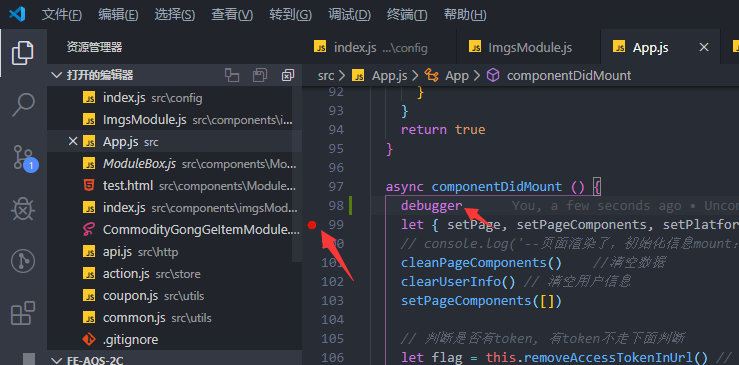
可以直接在文件右侧点击红色小点,也可以直接填写 debugger,打完断点就可以按 f5 开始了,操作和 chrome 的断点操作是一样的;
命令行操作
安装之后可以在 cmd 终端使用 code 命令,常用命令如下:
code ./ 以当前目录在 vscode 中打开
code 文件名 快速开始当前该文件编辑,如果是新文件按 ctrl+s 自动保存在目录上;
其他
扩展插件开发
vscode 使用 bash 终端
将下面代码加入到 vscode 设置 json 里面,找到自己的 git 地址;
"terminal.integrated.shell.windows": "C:\\Program Files\\Git\\bin\\bash.exe", // 添加默认终端工具"terminal.integrated.shell.windows": "C:\\Program Files\\Git\\bin\\bash.exe", // 添加默认终端工具下载小技巧
- 打开 Visual Studio Code 官网进行下载
- 打开下载管理,复制下载链接
- 将链接中的域名
az764295.vo.msecnd.net替换为vscode.cdn.azure.cn
# 示例
https://az764295.vo.msecnd.net/stable/74b1f979648cc44d385a2286793c226e611f59e7/VSCode-darwin-universal.zip
# 替换如下
https://vscode.cdn.azure.cn/stable/74b1f979648cc44d385a2286793c226e611f59e7/VSCode-darwin-universal.zip
# 示例
https://az764295.vo.msecnd.net/stable/74b1f979648cc44d385a2286793c226e611f59e7/VSCode-darwin-universal.zip
# 替换如下
https://vscode.cdn.azure.cn/stable/74b1f979648cc44d385a2286793c226e611f59e7/VSCode-darwin-universal.zip