 Cao Note
项目开发常用以及问题
开启 gzip 压缩
安装:npm install compression-webpack-plugin -D
配置 vue.config.js
jsmodule.export = { configureWebpack: (config) => { if (process.env. NODE_ENV === 'production') { return { plugins: [ new CompressionPlugin({ test: /\.js$|\.html$|\.css/, // 匹配文件名 threshold: 10240, // 对超过10k的数据进行压缩 deleteOriginalAssets: false, // 是否删除原文件 }), ], } } }, }module.export = { configureWebpack: (config) => { if (process.env. NODE_ENV === 'production') { return { plugins: [ new CompressionPlugin({ test: /\.js$|\.html$|\.css/, // 匹配文件名 threshold: 10240, // 对超过10k的数据进行压缩 deleteOriginalAssets: false, // 是否删除原文件 }), ], } } }, }要使服务器返回.gz 文件,还需要对服务器进行配置,根据 Request Headers 的 Accept-Encoding 标签进行鉴别,如果支持 gzip 就返回.gz 文件。
需要 nginx 配置,其实也可以不用配置,宝塔面板的 nginx 默认就已经配置好了
bash#开启和关闭gzip模式 gzip on; #gizp压缩起点,文件大于1k才进行压缩 gzip_min_length 1k; # gzip 压缩级别,1-9,数字越大压缩的越好,也越占用CPU时间 gzip_comp_level 6; # 进行压缩的文件类型。 gzip_types text/plain application/javascript application/x-javascript text/css application/xml text/javascript ; #nginx对于静态文件的处理模块,开启后会寻找以.gz结尾的文件,直接返回,不会占用cpu进行压缩,如果找不到则不进行压缩 gzip_static on # 是否在http header中添加Vary: Accept-Encoding,建议开启 gzip_vary on; # 设置gzip压缩针对的HTTP协议版本 gzip_http_version 1.1;#开启和关闭gzip模式 gzip on; #gizp压缩起点,文件大于1k才进行压缩 gzip_min_length 1k; # gzip 压缩级别,1-9,数字越大压缩的越好,也越占用CPU时间 gzip_comp_level 6; # 进行压缩的文件类型。 gzip_types text/plain application/javascript application/x-javascript text/css application/xml text/javascript ; #nginx对于静态文件的处理模块,开启后会寻找以.gz结尾的文件,直接返回,不会占用cpu进行压缩,如果找不到则不进行压缩 gzip_static on # 是否在http header中添加Vary: Accept-Encoding,建议开启 gzip_vary on; # 设置gzip压缩针对的HTTP协议版本 gzip_http_version 1.1;
封装 Vuex
创建目录结构:
store
 --modules
    --login.js
 --index.js
 --types.js
store --modules --login.js --index.js --types.js在 store/index.js 写入
jsimport Vue from 'vue' import Vuex from 'Vuex' Vue.use(Vuex) let modules = {} let context = require.context('./modules', false, /\.js$/) context.keys().forEach((item) => { let name = /\.\/(.*?)\.js$/.exec(item)[0] modules[name] = context(item).default }) export default new Vuex.Store({ modules, })import Vue from 'vue' import Vuex from 'Vuex' Vue.use(Vuex) let modules = {} let context = require.context('./modules', false, /\.js$/) context.keys().forEach((item) => { let name = /\.\/(.*?)\.js$/.exec(item)[0] modules[name] = context(item).default }) export default new Vuex.Store({ modules, })配置好第二步之后就可以直接在 modules 里面创建单文件 js 了,不能再创建文件夹,因为不能找到里面的 js 文件,不能在自动引入了
modules 里面的单文件 js 配置结构,和普通配置是一样的
jsimport * as types from '../types' const state = {} const mutations = {} const actions = {} const getters = {} export default { state, mutations, actions, getters, }import * as types from '../types' const state = {} const mutations = {} const actions = {} const getters = {} export default { state, mutations, actions, getters, }
Vuex 数据持久化
安装:npm i vuex-persistedstate
修改 store
jsimport createPersistedState from 'vuex-persistedstate' const persistedStateOpt = { storage: window.localStorage, } const store = new Vuex.Store({ // ... plugins: [createPersistedState(persistedStateOpt)], })import createPersistedState from 'vuex-persistedstate' const persistedStateOpt = { storage: window.localStorage, } const store = new Vuex.Store({ // ... plugins: [createPersistedState(persistedStateOpt)], })
配置 vue.config.js
let path = require('path')
const resolve = (dir) => path.join(__dirname, dir) // 设置绝对路径;
const env = process.env. NODE_ENV
module.exports = {
publicPath: '/', // 部署路径 以当前目录
outputDir: 'dist', // 输出文件目录(默认值dist)
lintOnSave: 'warning', // eslint是否在保存的时候检查, eslint出错不会导致编译失败
chainWebpack: (config) => {
// 配置别名
config.resolve.alias
.set('components', resolve('@/components'))
.set('assets', resolve('@/assets'))
.set('api', resolve('@/api'))
},
configureWebpack: (config) => {
config.devtool = '#eval-source-map' // 开启debugger调试
if (env === 'production') {
// 为生产环境修改配置...
config.mode = 'production'
// 生产环境关闭console
config.optimization.minimizer[0].options.terserOptions.compress.drop_console = true
// 配置gzip压缩
return {
plugins: [
new CompressionPlugin({
test: /\.js$|\.html$|\.css/, // 匹配文件名
threshold: 10240, // 对超过10k的数据进行压缩
deleteOriginalAssets: false, // 是否删除原文件
}),
],
}
} else {
// 为开发环境修改配置...
config.mode = 'development'
}
},
productionSourceMap: false, // 生产环境是否生成sourceMap 文件,false提高构建速度
devServer: {
host: '0.0.0.0', // 允许外部ip访问
port: 8022, // 端口
overlay: {
warnings: true,
errors: true,
},
proxy: {
'/api': {
target: 'http://www.baidu.com/api',
changeOrigin: true, //允许websockets跨域
pathRewrite: { '^/api': '' },
},
},
},
// 第三方插件配置
pluginOptions: {},
}let path = require('path')
const resolve = (dir) => path.join(__dirname, dir) // 设置绝对路径;
const env = process.env. NODE_ENV
module.exports = {
publicPath: '/', // 部署路径 以当前目录
outputDir: 'dist', // 输出文件目录(默认值dist)
lintOnSave: 'warning', // eslint是否在保存的时候检查, eslint出错不会导致编译失败
chainWebpack: (config) => {
// 配置别名
config.resolve.alias
.set('components', resolve('@/components'))
.set('assets', resolve('@/assets'))
.set('api', resolve('@/api'))
},
configureWebpack: (config) => {
config.devtool = '#eval-source-map' // 开启debugger调试
if (env === 'production') {
// 为生产环境修改配置...
config.mode = 'production'
// 生产环境关闭console
config.optimization.minimizer[0].options.terserOptions.compress.drop_console = true
// 配置gzip压缩
return {
plugins: [
new CompressionPlugin({
test: /\.js$|\.html$|\.css/, // 匹配文件名
threshold: 10240, // 对超过10k的数据进行压缩
deleteOriginalAssets: false, // 是否删除原文件
}),
],
}
} else {
// 为开发环境修改配置...
config.mode = 'development'
}
},
productionSourceMap: false, // 生产环境是否生成sourceMap 文件,false提高构建速度
devServer: {
host: '0.0.0.0', // 允许外部ip访问
port: 8022, // 端口
overlay: {
warnings: true,
errors: true,
},
proxy: {
'/api': {
target: 'http://www.baidu.com/api',
changeOrigin: true, //允许websockets跨域
pathRewrite: { '^/api': '' },
},
},
},
// 第三方插件配置
pluginOptions: {},
}sourceMap 介绍
是一个.map 的文件,里面储存着位置信息,这个文件里保存的是转换后代码的位置,和对应的转换前的位置,有了它,出错的时候通过断点工具可以直接显示原始代码,而不是转换后的代码;
每个 js 文件对应一个.map 文件,里面的基本信息如下
json{ "version": 3, //SourceMap的版本,目前为3 "sources": ["foo.js", "bar.js"], //转换前的文件,该项是一个数组,表示可能存在多个文件合并 "names": ["src", "maps", "are", "fun"], //转换前的所有变量名和属性名 "mappings": "AACvB,gBAAgB,EAAE;AAClB;", //记录位置信息的字符串 "file": "out.js", //转换后的文件名 "sourcesContent": " \t// The module cache\n", //转换后的代码 "sourceRoot": "" //转换前的文件所在的目录。如果与转换前的文件在同一目录,该项为空 }{ "version": 3, //SourceMap的版本,目前为3 "sources": ["foo.js", "bar.js"], //转换前的文件,该项是一个数组,表示可能存在多个文件合并 "names": ["src", "maps", "are", "fun"], //转换前的所有变量名和属性名 "mappings": "AACvB,gBAAgB,EAAE;AAClB;", //记录位置信息的字符串 "file": "out.js", //转换后的文件名 "sourcesContent": " \t// The module cache\n", //转换后的代码 "sourceRoot": "" //转换前的文件所在的目录。如果与转换前的文件在同一目录,该项为空 }
配置请求拦截器
创建 src/api/index
jsimport axios from 'axios' import Vue from 'vue' import { Loading, Message } from 'element-ui' // 请求loading可以自已更换 // 新建一个实例, 避免全局axios被污染; // 如果这里不是create创建的axios, 当axios被添加一次路由拦截器之后, 项目任意地方再次引入axios, 会同样使用该拦截器; const service = axios.create({ timeout: 10000, // 超时 withCredentials: true, // 允许cookie跨域 baseURL: '', // 配置请求host }) let loading = null // 配置请求 service.interceptors.request.use( (config) => { loading = Loading.service({ text: '正在加载中....' }) config.headers.Authorization = localStorage['token'] // 给请求添加token return config }, (error) => Promise.reject(error), ) // 配置响应 service.interceptors.response.use( (response) => { if (loading) loading.close() // ... 在这里处理统一code问题 return response.data }, (error) => { if (loading) loading.close() if (!error.response) { if (error.message.includes('timeout')) { Message.error('请求超时, 请检查网络是否连接正常') } else { Message.error('请求失败,请检查网络是否已连接') } return } return Promise.reject(error) }, ) // 切换页面时候,取消上个页面的请求的方法,需要则打开 // Vue.$httpRequestList = [] // const cancelToken = () => { // return new axios.CancelToken(cancel => { // // cancel就是取消请求的方法 // Vue.$httpRequestList.push({ // cancel // }) // }) // } export const getData = (url, data = {}, method = 'get', headers) => { let config = { url, method: method.toLowerCase(), // cancelToken: cancelToken(), headers, } if (method.toLowerCase() === 'get' || method === 'delete') { // 处理get请求防止IE缓存 if (!!window.ActiveXObject || 'ActiveXObject' in window) { data.t = new Date().getTime() } // 处理get请求的传参方式, get参数需要放在params下 config.params = data } else { config.data = data } return service(config) }import axios from 'axios' import Vue from 'vue' import { Loading, Message } from 'element-ui' // 请求loading可以自已更换 // 新建一个实例, 避免全局axios被污染; // 如果这里不是create创建的axios, 当axios被添加一次路由拦截器之后, 项目任意地方再次引入axios, 会同样使用该拦截器; const service = axios.create({ timeout: 10000, // 超时 withCredentials: true, // 允许cookie跨域 baseURL: '', // 配置请求host }) let loading = null // 配置请求 service.interceptors.request.use( (config) => { loading = Loading.service({ text: '正在加载中....' }) config.headers.Authorization = localStorage['token'] // 给请求添加token return config }, (error) => Promise.reject(error), ) // 配置响应 service.interceptors.response.use( (response) => { if (loading) loading.close() // ... 在这里处理统一code问题 return response.data }, (error) => { if (loading) loading.close() if (!error.response) { if (error.message.includes('timeout')) { Message.error('请求超时, 请检查网络是否连接正常') } else { Message.error('请求失败,请检查网络是否已连接') } return } return Promise.reject(error) }, ) // 切换页面时候,取消上个页面的请求的方法,需要则打开 // Vue.$httpRequestList = [] // const cancelToken = () => { // return new axios.CancelToken(cancel => { // // cancel就是取消请求的方法 // Vue.$httpRequestList.push({ // cancel // }) // }) // } export const getData = (url, data = {}, method = 'get', headers) => { let config = { url, method: method.toLowerCase(), // cancelToken: cancelToken(), headers, } if (method.toLowerCase() === 'get' || method === 'delete') { // 处理get请求防止IE缓存 if (!!window.ActiveXObject || 'ActiveXObject' in window) { data.t = new Date().getTime() } // 处理get请求的传参方式, get参数需要放在params下 config.params = data } else { config.data = data } return service(config) }调接口方法,在 api 创建一个 js 文件,针对某个页面创建,如 login.js
jsimport { getData } from './index' export const login = (data) => getData('/auth/login', data, 'post')import { getData } from './index' export const login = (data) => getData('/auth/login', data, 'post')如果需要配置取消拦截器:在路由文件里面处理接口请求
js// 路由切换检测是否强行中断 router.beforeEach((to, from, next) => { if (Vue.$httpRequestList && Vue.$httpRequestList.length > 0) { Vue.$httpRequestList.forEach((request) => { // 取消没有响应的请求 request.cancel() }) // 请求取消响应的数据 Vue.$httpRequestList = [] } })// 路由切换检测是否强行中断 router.beforeEach((to, from, next) => { if (Vue.$httpRequestList && Vue.$httpRequestList.length > 0) { Vue.$httpRequestList.forEach((request) => { // 取消没有响应的请求 request.cancel() }) // 请求取消响应的数据 Vue.$httpRequestList = [] } })在组件里面引入该请求的方法,直接调用传入参数即可
jsimport { login } from 'api/login' export default { name: 'login', method: { async submit() { let res = await login() if (res && res.data) { // 处理成功之后的方法 } }, }, }import { login } from 'api/login' export default { name: 'login', method: { async submit() { let res = await login() if (res && res.data) { // 处理成功之后的方法 } }, }, }
环境配置
创建 config/index.js
js// 填写对应的网址 const globals = { mock: 'test', host: { test: 'https://test.wing.vip', pre: 'https://pre.wing.vip', prod: 'https://prod.wing.vip', uat: 'https://uat.wing.vip', }, // 在下面也可以写其他的全局配置 } export default globals// 填写对应的网址 const globals = { mock: 'test', host: { test: 'https://test.wing.vip', pre: 'https://pre.wing.vip', prod: 'https://prod.wing.vip', uat: 'https://uat.wing.vip', }, // 在下面也可以写其他的全局配置 } export default globals创建 utils/common.js,里面放公共的方法
jsimport Cookies from 'js-cookie' // 用于存token的cookie import { globals } from '../globals' /** * 根据页面url, 返回对应的运行环境 */ export const getCurrentEnv = function () { let { hostname } = window.location if ( hostname.includes('localhost') || hostname.includes('10.105') || hostname.includes('192.168') ) { return globals.mock } } export const getHost = function () { return globals.host[getCurrentEnv()] }import Cookies from 'js-cookie' // 用于存token的cookie import { globals } from '../globals' /** * 根据页面url, 返回对应的运行环境 */ export const getCurrentEnv = function () { let { hostname } = window.location if ( hostname.includes('localhost') || hostname.includes('10.105') || hostname.includes('192.168') ) { return globals.mock } } export const getHost = function () { return globals.host[getCurrentEnv()] }在配置拦截路由里面引入 common.js
jsimport { getHost } from 'utils/common' axios.defaults.baseURL = getHost()import { getHost } from 'utils/common' axios.defaults.baseURL = getHost()
创建全局的 scss 变量
配置 vue.config.js
module.exports = {
  css: {
    loaderOptions: {
      scss: {
        // 根据自己的路径设置
        prependData: `@import "@/styles/variable.scss";`,
      },
    },
  },
}

// 如果上面的不行,将scss换成sass
sass: {
  data: `@import "@/styles/variable.scss";`
}module.exports = {
css: {
loaderOptions: {
scss: {
// 根据自己的路径设置
prependData: `@import "@/styles/variable.scss";`,
},
},
},
}
// 如果上面的不行,将scss换成sass
sass: {
data: `@import "@/styles/variable.scss";`
}路由懒加载
使用 import 可以懒加载
path: '/home',
name: 'home',
component: () => import('src/views/home')path: '/home',
name: 'home',
component: () => import('src/views/home')修改懒加载引入的名字
使用 webpackChunkName 定义懒加载的名字
jsimport(/* webpackChunkName: "home"*/ 'src/views/home')import(/* webpackChunkName: "home"*/ 'src/views/home')使用[request]变量,可以解决循环 import 的找不到名字
jsroutes.forEach(route => { path: route.path, name: route.name, component: () => import(/* webpackChunkName: "[request]" */ `src/views/${route.filePath}`) })routes.forEach(route => { path: route.path, name: route.name, component: () => import(/* webpackChunkName: "[request]" */ `src/views/${route.filePath}`) })
拆分路由
创建 src/router/index.js 文件
jsimport Vue from 'vue' import Router from 'vue-router' Vue.use(Router) let routes = [] const routerContext = require.context('./', true, /index\.js$/) routerContext.keys().forEach((route) => { // 处理路由根目录的index.js if (route.startsWith('./index')) return const routerModule = routerContext(route) // 兼容import export 和 require module.export 两种规范 routes = [...routes, ...(routerModule.default || routerModule)] }) export default new Router({ mode: 'history', base: process.env. BASE_URL, routes, })import Vue from 'vue' import Router from 'vue-router' Vue.use(Router) let routes = [] const routerContext = require.context('./', true, /index\.js$/) routerContext.keys().forEach((route) => { // 处理路由根目录的index.js if (route.startsWith('./index')) return const routerModule = routerContext(route) // 兼容import export 和 require module.export 两种规范 routes = [...routes, ...(routerModule.default || routerModule)] }) export default new Router({ mode: 'history', base: process.env. BASE_URL, routes, })之后在 router 文件夹下面以 下面的方式创建文件路由
js// Home/index.js export default [ { path: '/home', name: 'Home', components: () => import('@/views/Home'), meta: { title: '', // 页面标题; }, }, ]// Home/index.js export default [ { path: '/home', name: 'Home', components: () => import('@/views/Home'), meta: { title: '', // 页面标题; }, }, ]
配置 svg
安装:npm i svg-sprite-loader
修改 vue.config.js
jsconst path = require('path') const resolve = (dir) => path.resolve(__dirname, dir) module.exports = { // ... chainWebpack: (config) => { // 解决默认svg不处理src/assets文件夹 config.module.rule('svg').exclude.add(resolve('src/assets')).end() config.module .rule('icons') .test(/\.svg$/) .include.add(resolve('src/assets')) // 处理svg目录 .end() .use('svg-sprite-loader') .loader('svg-sprite-loader') .options({ symbolId: 'icon-[name]', }) }, }const path = require('path') const resolve = (dir) => path.resolve(__dirname, dir) module.exports = { // ... chainWebpack: (config) => { // 解决默认svg不处理src/assets文件夹 config.module.rule('svg').exclude.add(resolve('src/assets')).end() config.module .rule('icons') .test(/\.svg$/) .include.add(resolve('src/assets')) // 处理svg目录 .end() .use('svg-sprite-loader') .loader('svg-sprite-loader') .options({ symbolId: 'icon-[name]', }) }, }在 components 下新建 SvgIcon.vue
vue<template> <svg :class="svgClass" aria-hidden="true"> <use :xlink:href="iconName" /> </svg> </template> <script> export default { name: 'SvgIcon', props: { name: { type: String, required: true, }, className: { type: String, default: '', }, }, computed: { iconName() { return `#icon-${this.name}` }, svgClass() { if (this.className) { return 'svg-icon ' + this.className } else { return 'svg-icon' } }, }, } </script> <style scoped> .svg-icon { width: 1em; height: 1em; vertical-align: -0.15em; fill: currentColor; overflow: hidden; } </style><template> <svg :class="svgClass" aria-hidden="true"> <use :xlink:href="iconName" /> </svg> </template> <script> export default { name: 'SvgIcon', props: { name: { type: String, required: true, }, className: { type: String, default: '', }, }, computed: { iconName() { return `#icon-${this.name}` }, svgClass() { if (this.className) { return 'svg-icon ' + this.className } else { return 'svg-icon' } }, }, } </script> <style scoped> .svg-icon { width: 1em; height: 1em; vertical-align: -0.15em; fill: currentColor; overflow: hidden; } </style>在 assets 目录下新建 index.js
jsimport Vue from 'vue' import SvgIcon from '@/components/SvgIcon' // svg组件 // register globally Vue.component('svg-icon', SvgIcon) const requireAll = (requireContext) => requireContext.keys().map(requireContext) const req = require.context('./', true, /\.svg$/) requireAll(req)import Vue from 'vue' import SvgIcon from '@/components/SvgIcon' // svg组件 // register globally Vue.component('svg-icon', SvgIcon) const requireAll = (requireContext) => requireContext.keys().map(requireContext) const req = require.context('./', true, /\.svg$/) requireAll(req)将 assets/index.js 引入到 main.js
接下来将需要使用 svg 的图片放入到 assets/icons 下面即可,会自动注册
html<template> <svg-icon name="文件名" /> </template><template> <svg-icon name="文件名" /> </template>
配置 postcss 插件
在项目根目录创建 postcss.config.js,postcss-pxtorem 是自动转换 rem;
配置样式官网教程: https://cli.vuejs.org/zh/guide/css.html
jsmodule.exports = { plugins: { autoprefixer: {}, // 浏览器自动前缀 // 自动转rem布局的插件 'postcss-pxtorem': { rootValue: 32, // 根大小 propList: ['*'], // 属性选择器, *表示通用; selectorBlackList: ['weui', 'mu', 'no-'], // 忽略选择器, 正则匹配,选择器有数组的都不转换; }, }, }module.exports = { plugins: { autoprefixer: {}, // 浏览器自动前缀 // 自动转rem布局的插件 'postcss-pxtorem': { rootValue: 32, // 根大小 propList: ['*'], // 属性选择器, *表示通用; selectorBlackList: ['weui', 'mu', 'no-'], // 忽略选择器, 正则匹配,选择器有数组的都不转换; }, }, }如果在创建项目时,没有选择 postcss.config.js、babel、ESLint...单文件,选择了 package.json,则需要在 vue.config.js 配置
jsmodule.exports = { css: { loaderOptions: { postcss: { plugins: [ require('postcss-pxtorem')({ rootValue: 32, ..... }), .....其他的插件; ] } } } }module.exports = { css: { loaderOptions: { postcss: { plugins: [ require('postcss-pxtorem')({ rootValue: 32, ..... }), .....其他的插件; ] } } } }
配置 mock
安装 mock:
npm i mockjs mocker-api -S对修改 vue.config.js:
jsvar webpack = require('webpack') var apiMocker = require('mocker-api') module.exports = { devServer: { before(app) { apiMocker(app, path.resolve(__dirname, './mock/index.js'), { proxy: {}, // 需要设置代理的话 changeHost: true, }) }, }, }var webpack = require('webpack') var apiMocker = require('mocker-api') module.exports = { devServer: { before(app) { apiMocker(app, path.resolve(__dirname, './mock/index.js'), { proxy: {}, // 需要设置代理的话 changeHost: true, }) }, }, }在项目根目录创建 mock/index.js
jsmodule.exports = { // 支持值为 Object 和 Array 'GET /api/users': { users: [1, 2] }, // GET 可忽略 '/api/users/1': { id: 1 }, // 支持自定义函数,API 参考 express@4 'POST /api/users/create': (req, res) => { // 添加跨域请求头 res.setHeader('Access-Control-Allow-Origin', '*') res.end('ok') }, }module.exports = { // 支持值为 Object 和 Array 'GET /api/users': { users: [1, 2] }, // GET 可忽略 '/api/users/1': { id: 1 }, // 支持自定义函数,API 参考 express@4 'POST /api/users/create': (req, res) => { // 添加跨域请求头 res.setHeader('Access-Control-Allow-Origin', '*') res.end('ok') }, }mock 基本例子:
jsMock.mock({ 'data|80-100': [ { id: '@id', name: '@name', nicName: '@last', phone: /^1[345678]\d{9}$/, 'age|11-99': 1, address: '@county(true)', isMale: '@boolean', email: '@email', createTime: '@datetime', avatar() { return Mock.Random.image('200*100', '#894FC4', '#FFF', 'png', '!') }, }, ], })Mock.mock({ 'data|80-100': [ { id: '@id', name: '@name', nicName: '@last', phone: /^1[345678]\d{9}$/, 'age|11-99': 1, address: '@county(true)', isMale: '@boolean', email: '@email', createTime: '@datetime', avatar() { return Mock.Random.image('200*100', '#894FC4', '#FFF', 'png', '!') }, }, ], })
跨域
webpack 配置代理
在项目目录下创建【vue.config.js】,不是 src 文件夹下,内容如下:
module.exports = {
  //打包后的文件夹目录
  outputDir: 'dist',
  // 静态资源文件夹目录
  assetsDir: 'static',
  // 根文件
  indexPath: 'index.html',
  // 基础路径 hash:""  history:"/"
  publicPath: '',
  // 配置代理
  devServer: {
    proxy: {
      '/api': {
        // 后端电脑的ip+端口号
        target: 'http://localhost:2000',
        changeOrigin: true, //跨域
        ws: true, //跨域
      },
    },
  },
}module.exports = {
//打包后的文件夹目录
outputDir: 'dist',
// 静态资源文件夹目录
assetsDir: 'static',
// 根文件
indexPath: 'index.html',
// 基础路径 hash:"" history:"/"
publicPath: '',
// 配置代理
devServer: {
proxy: {
'/api': {
// 后端电脑的ip+端口号
target: 'http://localhost:2000',
changeOrigin: true, //跨域
ws: true, //跨域
},
},
},
}环境判断 【http/api.js】
对于图片来说,开发环境下需要加’http://localhost:2000‘,生产环境下,不需要加,所以我们做一下环境判断。
// 环境判断
//开发环境 8080:$pre='http://localhost:2000'
//生产环境 2000:$pre=""
// console.log(process.env.NODE_ENV) 开发环境:development 生产环境:production
if (process.env. NODE_ENV === 'development') {
Vue.prototype.$pre = 'http://localhost:2000'
}
if (process.env. NODE_ENV === 'production') {
Vue.prototype.$pre = ''
}// 环境判断
//开发环境 8080:$pre='http://localhost:2000'
//生产环境 2000:$pre=""
// console.log(process.env.NODE_ENV) 开发环境:development 生产环境:production
if (process.env. NODE_ENV === 'development') {
Vue.prototype.$pre = 'http://localhost:2000'
}
if (process.env. NODE_ENV === 'production') {
Vue.prototype.$pre = ''
}vite 环境变量配置
- 根目录建以下文件
.env.development
.env.production
.env.development
.env.production- 修改
vite.config.js
import { loadEnv, defineConfig } from 'vite'
export default defineConfig((env) => {
  const envs = loadEnv(env.mode, process.cwd())
  // 在.env.* 文件写的将会自动读取
  console.log(envs)
})
import { loadEnv, defineConfig } from 'vite'
export default defineConfig((env) => {
const envs = loadEnv(env.mode, process.cwd())
// 在.env.* 文件写的将会自动读取
console.log(envs)
})自动按需加载 api、组件、样式
- 安装
pnpm add unplugin-vue-components unplugin-auto-import -Dpnpm add unplugin-vue-components unplugin-auto-import -D- 修改
vite.config.js
// vite.config.ts
import AutoImport from 'unplugin-auto-import/vite'
import Components from 'unplugin-vue-components/vite'

export default {
  plugins: [
    // https://github.com/antfu/unplugin-auto-import
    AutoImport({
      dts: './src/auto-imports.d.ts',
      // 这里写入按需加载的组件库
      imports: ['vue', 'pinia', 'vue-router', '@vueuse/core'],
    }),
    // https://github.com/antfu/unplugin-vue-components
    Components({
      // 自动引入的后缀
      extensions: ['vue', 'md'],

      // allow auto import and register components used in markdown
      include: [/\.vue$/, /\.vue\?vue/, /\.md$/],

      dts: './src/components.d.ts',
      // imports 指定组件所在位置,默认为 src/components
      dirs: ['src/components/'],
    }),
  ],
}
// vite.config.ts
import AutoImport from 'unplugin-auto-import/vite'
import Components from 'unplugin-vue-components/vite'
export default {
plugins: [
// https://github.com/antfu/unplugin-auto-import
AutoImport({
dts: './src/auto-imports.d.ts',
// 这里写入按需加载的组件库
imports: ['vue', 'pinia', 'vue-router', '@vueuse/core'],
}),
// https://github.com/antfu/unplugin-vue-components
Components({
// 自动引入的后缀
extensions: ['vue', 'md'],
// allow auto import and register components used in markdown
include: [/\.vue$/, /\.vue\?vue/, /\.md$/],
dts: './src/components.d.ts',
// imports 指定组件所在位置,默认为 src/components
dirs: ['src/components/'],
}),
],
}增加页面加载进度条
- 安装
pnpm add nprogresspnpm add nprogress- 修改路由拦截器
import NProgress from 'nprogress'
router.beforeEach((to, from) => {
  if (!NProgress.isStarted()) {
    NProgress.start()
  }
})

router.afterEach((to, from) => {
  NProgress.done()
})
import NProgress from 'nprogress'
router.beforeEach((to, from) => {
if (!NProgress.isStarted()) {
NProgress.start()
}
})
router.afterEach((to, from) => {
NProgress.done()
})- 添加 css 样式文件并引入,地址:https://unpkg.com/nprogress@0.2.0/nprogress.css
增加 UI 组件库
下面以element-plus为例,直接配置按需引入即可,其他组件库也是如此 其他支持按需引入的组件库: https://github.com/antfu/unplugin-vue-components/blob/main/src/core/resolvers/index.ts
- 安装
pnpm add element-pluspnpm add element-plus- 按需引入 修改 vite.config.ts 文件
// vite.config.ts
import AutoImport from 'unplugin-auto-import/vite'
import Components from 'unplugin-vue-components/vite'
import { ElementPlusResolver } from 'unplugin-vue-components/resolvers'

export default {
  plugins: [
    // ...
    AutoImport({
      resolvers: [ElementPlusResolver()],
    }),
    Components({
      resolvers: [ElementPlusResolver()],
    }),
  ],
}
// vite.config.ts
import AutoImport from 'unplugin-auto-import/vite'
import Components from 'unplugin-vue-components/vite'
import { ElementPlusResolver } from 'unplugin-vue-components/resolvers'
export default {
plugins: [
// ...
AutoImport({
resolvers: [ElementPlusResolver()],
}),
Components({
resolvers: [ElementPlusResolver()],
}),
],
}- 直接在模板里面使用即可
增加 markdown 组件
- 安装
pnpm add @vueuse/head
pnpm add -D vite-plugin-md markdown-it-link-attributes markdown-it-prism
pnpm add @vueuse/head
pnpm add -D vite-plugin-md markdown-it-link-attributes markdown-it-prism- main 入口文件加入
import { createHead } from '@vueuse/head'
app.use(createHead())
import { createHead } from '@vueuse/head'
app.use(createHead())- vite.config.ts 配置
import Markdown from 'vite-plugin-md'
import Prism from 'markdown-it-prism'
import LinkAttributes from 'markdown-it-link-attributes'

export default defineConfig({
  plugins: [
    AutoImport({
      imports: ['@vuevue/head'],
    }),
    Markdown({
      wrapperClasses: 'markdown-body',
      headEnabled: true,
      markdownItOptions: {
        html: true,
        linkify: true,
        typographer: true,
      },
      markdownItSetup(md) {
        // https://prismjs.com/
        md.use(Prism)
        md.use(LinkAttributes, {
          matcher: (link: string) => /^https?:\/\//.test(link),
          attrs: {
            target: '_blank',
            rel: 'noopener',
          },
        })
      },
    }),
  ],
})
import Markdown from 'vite-plugin-md'
import Prism from 'markdown-it-prism'
import LinkAttributes from 'markdown-it-link-attributes'
export default defineConfig({
plugins: [
AutoImport({
imports: ['@vuevue/head'],
}),
Markdown({
wrapperClasses: 'markdown-body',
headEnabled: true,
markdownItOptions: {
html: true,
linkify: true,
typographer: true,
},
markdownItSetup(md) {
// https://prismjs.com/
md.use(Prism)
md.use(LinkAttributes, {
matcher: (link: string) => /^https?:\/\//.test(link),
attrs: {
target: '_blank',
rel: 'noopener',
},
})
},
}),
],
})- 新增 views/markdown.vue 文件
<template>
  <MarkdownPage />
</template>
<script lang="ts" setup>
import MarkdownPage from '@/docs/Test.md'
</script><template>
<MarkdownPage />
</template>
<script lang="ts" setup>
import MarkdownPage from '@/docs/Test.md'
</script>- 添加一个新的路由
{
  name: 'Markdown',
  path: '/markdown',
  component: MarkdownPage,
  meta: {
    title: 'markdown',
  },
}
{
name: 'Markdown',
path: '/markdown',
component: MarkdownPage,
meta: {
title: 'markdown',
},
}- 下载 markdown 样式 地址:https://prismjs.com/plugins/file-highlight/#examples 点击 DOWNLOAD,选择对应的主题,滚动到最下面,点击下载 css 添加 src/assets/styles/markdown.scss,并将下载好的 css 内容复制进去
.markdown-body {
  // 复制到这里
}
.markdown-body {
// 复制到这里
}之后将该 css 文件在 index.scss 文件内导入
让 svg 支持组件一样引入
- 安装
pnpm add vite-svg-loader -Dpnpm add vite-svg-loader -D- 修改
vite.config.js
import svgLoader from 'vite-svg-loader'

export default defineConfig({
  plugins: [
    // ...
    svgLoader(),
  ],
})
import svgLoader from 'vite-svg-loader'
export default defineConfig({
plugins: [
// ...
svgLoader(),
],
})- 使用示例
<script setup lang="ts">
import MyIcon from '@/assets/example.svg?component'
</script>

<template>
  <MyIcon />
</template><script setup lang="ts">
import MyIcon from '@/assets/example.svg?component'
</script>
<template>
<MyIcon />
</template>配置 scss 全局变量
修改vite.config.js
css: {
  preprocessorOptions: {
    scss: {
      additionalData: `
      @import "@/assets/styles/variables.scss";
    `,
      javascriptEnabled: true,
    },
  },
},css: {
preprocessorOptions: {
scss: {
additionalData: `
@import "@/assets/styles/variables.scss";
`,
javascriptEnabled: true,
},
},
},封装 hooks 取全局数据
- 创建 useGlobal.ts 文件
import { getCurrentInstance } from 'vue'
function useGlobal() {
  const instance = getCurrentInstance() as unknown as ICurrentInstance
  return instance.appContext.config.globalProperties
}
export default useGLobal
import { getCurrentInstance } from 'vue'
function useGlobal() {
const instance = getCurrentInstance() as unknown as ICurrentInstance
return instance.appContext.config.globalProperties
}
export default useGLobal- 全局定义类型有更好的提示
interface ICurrentInstance extends ComponentInternalInstance {
  appContext: {
    config: { globalProperties: IGlobal }
  }
}

interface IGlobal {
  // ...
}
interface ICurrentInstance extends ComponentInternalInstance {
appContext: {
config: { globalProperties: IGlobal }
}
}
interface IGlobal {
// ...
}在 vscode 可以点击跳转到对应的文件
创建 jsconfig.json
{
  "compilerOptions": {
    "baseUrl": ".",
    "paths": {
      "@/*": ["./src/*"], // 增加别名可以跳转对应文件夹
      "api": ["api"] // 其他的路径跳转
    }
  }
}
{
"compilerOptions": {
"baseUrl": ".",
"paths": {
"@/*": ["./src/*"], // 增加别名可以跳转对应文件夹
"api": ["api"] // 其他的路径跳转
}
}
}逻辑复用方法
MyPlugin.install = function (Vue, options) {
    // 第一种方法. 添加全局方法或属性
    Vue.myGlobalMethod = function () {
        // 逻辑...
    }

    // 第二种方法. 添加全局资源
    Vue.directive('my-directive', {
        bind (el, binding, vnode, oldVnode) {
            // 逻辑...
        }
        ...
    })

    // 第三种方法. 注入组件
    Vue.mixin({
        created: function () {
        // 逻辑...
        }
         ...
    })

    // 第五种方法. 添加实例方法
    Vue.prototype.$myMethod = function (methodOptions) {
        // 逻辑...
    }

    // 第六种方法,注册组件
    Vue.component(组件名, 组件)
}MyPlugin.install = function (Vue, options) {
// 第一种方法. 添加全局方法或属性
Vue.myGlobalMethod = function () {
// 逻辑...
}
// 第二种方法. 添加全局资源
Vue.directive('my-directive', {
bind (el, binding, vnode, oldVnode) {
// 逻辑...
}
...
})
// 第三种方法. 注入组件
Vue.mixin({
created: function () {
// 逻辑...
}
...
})
// 第五种方法. 添加实例方法
Vue.prototype.$myMethod = function (methodOptions) {
// 逻辑...
}
// 第六种方法,注册组件
Vue.component(组件名, 组件)
}举例使用场景:
- toast 提示可以选择 Vue.prototype
- 输入框自动获取焦点可以选择 Vue.directive 指令,
- 自定义组件可以选择 Vue.component 的形式。
样式穿透
在使用 UI 框架时,由于一些选择器嵌套太深,无法被读取到,因此可以使用样式穿透
一个组件可以同时使用 scoped 和非 scoped 两个 style 标签,将无法起效果的,需要穿透的放到 style 标签去写;
js<style></style> <style scoped></style><style></style> <style scoped></style>使用>>>进行穿透
css.father >>> .son { /* */ }.father >>> .son { /* */ }对于 less、sass 等处理器,不支持>>>解析,可以使用/deep/ 或 ::v-deep
css.father { /deep/ .son { /* */ } }.father { /deep/ .son { /* */ } }
数据请求 loading
在 main.js 里面配置全局的 loading
jsimport {Loading} from 'element-ui' Vue.prototype.$loading = options => { let defaults = { lock: false, // 是否锁定屏幕滚动 text: '加载中', spinner: 'el-icon-loading', background: 'rgba(0,0,0,.7)', target: document.body, 目标对象 ...options } return Loading.service(defaults) }import {Loading} from 'element-ui' Vue.prototype.$loading = options => { let defaults = { lock: false, // 是否锁定屏幕滚动 text: '加载中', spinner: 'el-icon-loading', background: 'rgba(0,0,0,.7)', target: document.body, 目标对象 ...options } return Loading.service(defaults) }在请求数据时
jsasync function reqData() { let loading = null this.$nextTick(() => { // 服务方式必须使用异步处理 loading = this.$loading({ target: 'el-table' }) // 传入需要显示的位置 }) let res = await getData() loading.close() }async function reqData() { let loading = null this.$nextTick(() => { // 服务方式必须使用异步处理 loading = this.$loading({ target: 'el-table' }) // 传入需要显示的位置 }) let res = await getData() loading.close() }
长列表优化
安装插件:
yarn add vue-virtual-scroller修改 main.js 文件
jsimport Vue from 'vue' import VueVirtualScroller from 'vue-virtual-scroller' Vue.use(VueVirtualScroller) import 'vue-virtual-scroller/dist/vue-virtual-scroller.cssimport Vue from 'vue' import VueVirtualScroller from 'vue-virtual-scroller' Vue.use(VueVirtualScroller) import 'vue-virtual-scroller/dist/vue-virtual-scroller.css
封装 el-dialog 方法
创建组件模板,根据自行需要封装,主要是了解如何触发;
vue<template> <div class=""> <el-dialog :visible.sync="visible"> <template #title> <span class="deleteDia__title--txt">{{ title }}</span> </template> <slot /> <div slot="footer" class=""> <el-button plain @click="visible = false">取 消</el-button> <el-button type="primary" @click="send">确 定</el-button> </div> </el-dialog> </div> </template> <script> export default { name: 'el-dialogs', props: { value: { type: Boolean, default: false, }, title: { type: String, default: '系统提示', }, }, computed: { visible: { get() { return this.value }, set(val) { this.$emit('input', val) }, }, }, methods: { send() { this.$emit('custom') // 触发父元素的自定义事件 }, }, } </script> <style lang="scss"></style><template> <div class=""> <el-dialog :visible.sync="visible"> <template #title> <span class="deleteDia__title--txt">{{ title }}</span> </template> <slot /> <div slot="footer" class=""> <el-button plain @click="visible = false">取 消</el-button> <el-button type="primary" @click="send">确 定</el-button> </div> </el-dialog> </div> </template> <script> export default { name: 'el-dialogs', props: { value: { type: Boolean, default: false, }, title: { type: String, default: '系统提示', }, }, computed: { visible: { get() { return this.value }, set(val) { this.$emit('input', val) }, }, }, methods: { send() { this.$emit('custom') // 触发父元素的自定义事件 }, }, } </script> <style lang="scss"></style>使用方法
html<组件名 v-model='visible的变量' @custom='确定按钮的函数'/><组件名 v-model='visible的变量' @custom='确定按钮的函数'/>
其他方法:
不使用 v-model;
- 子组件:使用$parent 访问父组件的方法调用事件
- 父组件:父组件使用 ref 访问子组件的方法显示子组件
节制地使用 $parent 和 $children - 它们的主要目的是作为访问组件的应急方法。更推荐用 props 和 events 实现父子组件通信
添加 Message 消息提示节流
import { Message as message } from 'element-ui'
Vue.prototype.$messageTip = new Proxy(() => {}, {
  get(target, property, receiver) {
    const that = this
    return function (msg) {
      that.apply(target, that, [msg, property])
    }
  },
  apply(_target, _thisBing, [msg, status]) {
    sessionStorage.ELEMENT_MESSAGE_FLAG = sessionStorage.ELEMENT_MESSAGE_FLAG || 'true'
    if (sessionStorage.ELEMENT_MESSAGE_FLAG === 'false') return
    sessionStorage.ELEMENT_MESSAGE_FLAG = 'false'
    message[status || 'success'](msg)
    setTimeout((_) => {
      sessionStorage.ELEMENT_MESSAGE_FLAG = 'true'
      delete sessionStorage.ELEMENT_MESSAGE_FLAG
    }, 1500)
  },
})
import { Message as message } from 'element-ui'
Vue.prototype.$messageTip = new Proxy(() => {}, {
get(target, property, receiver) {
const that = this
return function (msg) {
that.apply(target, that, [msg, property])
}
},
apply(_target, _thisBing, [msg, status]) {
sessionStorage.ELEMENT_MESSAGE_FLAG = sessionStorage.ELEMENT_MESSAGE_FLAG || 'true'
if (sessionStorage.ELEMENT_MESSAGE_FLAG === 'false') return
sessionStorage.ELEMENT_MESSAGE_FLAG = 'false'
message[status || 'success'](msg)
setTimeout((_) => {
sessionStorage.ELEMENT_MESSAGE_FLAG = 'true'
delete sessionStorage.ELEMENT_MESSAGE_FLAG
}, 1500)
},
})使用方式:
- 两个调用方式:
- ①$messageTip.info(消息或对象)
- ②$messageTip(消息或对象,类型)
注意: 在入口文件的生命周期删除 delete sessionStorage['ELEMENT_MESSAGE_FLAG'],否则可能会有 bug;
防抖、节流用法
import { debounce } from 'lodash'
methods: {
  remoteMethod: debounce(function (query) {
    // this始终指向Vue实例
  }, 100)
}
import { debounce } from 'lodash'
methods: {
remoteMethod: debounce(function (query) {
// this始终指向Vue实例
}, 100)
}监听生命周期函数
内部监听生命周期
为了使代码更易阅读,可以将事件放到一个生命周期写;
可以通过this.$on或this.$once监听生命周期;
export default {
  mounted() {
    window.addEventListener('resize', this.resizeFn)
    this.$once('hook:beforeDestory', () => {
      window.removeEventListener('resize', this.resizeFn)
    })
  },
  methods: {
    resizeFn() {},
  },
}
export default {
mounted() {
window.addEventListener('resize', this.resizeFn)
this.$once('hook:beforeDestory', () => {
window.removeEventListener('resize', this.resizeFn)
})
},
methods: {
resizeFn() {},
},
}外部监听生命周期
常用在第三方组件上面,需要监听第三方组件的生命周期事件;
<template>
  <custom @hook:updated="" />
</template><template>
<custom @hook:updated="" />
</template>Vue.observable
大项目使用 Vuex,小项目使用 Vue.observable
创建 store
jsimport Vue from 'vue' export const store = Vue.observable({ userInfo: {}, list: [], }) export const mutations = { setUserInfo(userInfo) { store.userInfo = userInfo }, }import Vue from 'vue' export const store = Vue.observable({ userInfo: {}, list: [], }) export const mutations = { setUserInfo(userInfo) { store.userInfo = userInfo }, }在组件中引入
vue<template> <div> {{ userInfo.name }} </div> </template> import {store, mutations} from '../store' export default { computed:{ userInfo(){ return store.userInfo } } }<template> <div> {{ userInfo.name }} </div> </template> import {store, mutations} from '../store' export default { computed:{ userInfo(){ return store.userInfo } } }
随时监听 watch
通过this.$watch随时监听,通过返回的unwatch()取消监听
methods: {
    loadData() {
        this.formData = {}
        const unwatch = this.$watch('formData', () => {}, {deep: true})
    }
}methods: {
loadData() {
this.formData = {}
const unwatch = this.$watch('formData', () => {}, {deep: true})
}
}渲染字符串
github 地址:[https://github.com/alexjoverm/v-runtime-template](
Bug 记录
渲染问题
- 页面渲染会按照静态的数据,之后再渲染请求到的数据,要注意一下顺序的问题;
- 遇到问题使用 debugger 试试渲染顺序的问题;
- 如果遇到页面没有渲染,可以查看 network 数据有没有请求成功;
- 出现 list undefined 但是页面没有出现问题,是因为使用了下标取值时,还没有值的,给父元素加个 v-if,判断数组的长度;
- 在 data 数据里面引入图片不起作用的问题,需要在 data 函数里面 require 引入才行;
单 html 问题
- 使用 ui 框架没有渲染出来:vue 官方提示说过,在 html 文件不支持写自闭合标签,因此如果没有渲染出来标签可能是写了自闭合标签;
Element-ui 问题
输入框@keyup 失效
- 加上.native 转为原生的就可以解决了;
@keyup.enter.native='';
遮罩层档住内容层
- 在 el-dialog 标签里添加
:modal-append-to-body='false'
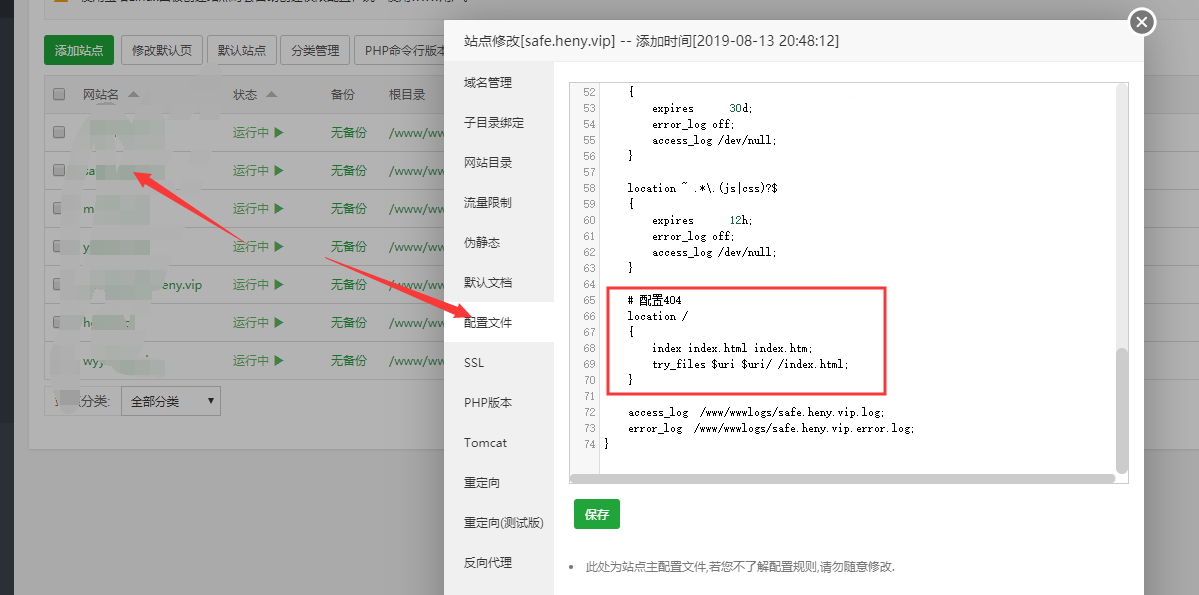
Vue 项目打包后页面刷新出现 404 错误
利用 nginx 配置一下 location 就可以了
    # 配置404
    location /
    {
        index index.html index.htm;
        try_files $uri $uri/ /index.html;
    }
# 配置404
location /
{
index index.html index.htm;
try_files $uri $uri/ /index.html;
}宝塔面板配置路径